

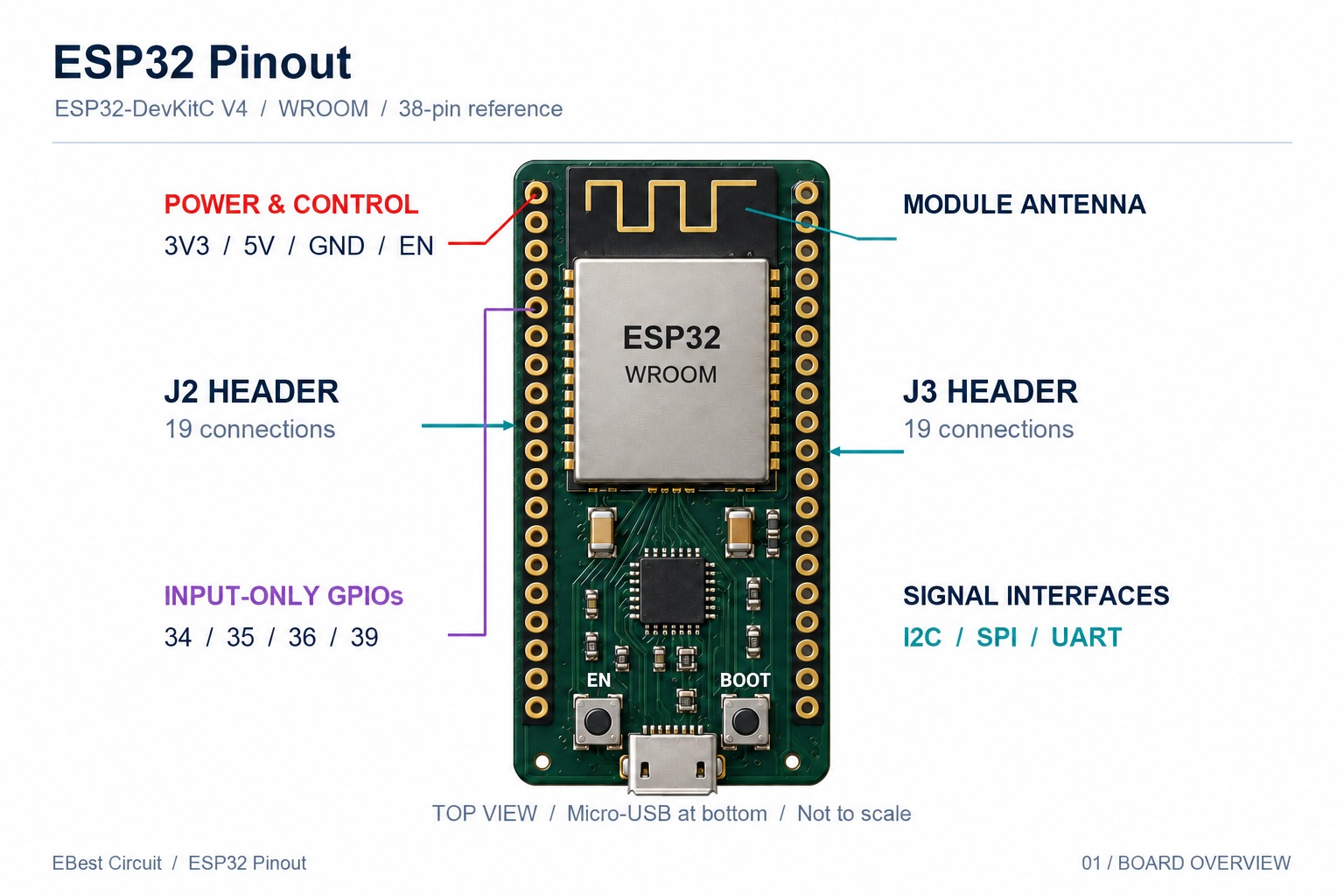
The esp32 pinout identifies a board’s power, ground, control and GPIO connections. On a classic ESP32-WROOM development board, GPIO21 and GPIO22 are common I2C choices, GPIO1 and GPIO3 serve UART0, and GPIO34–39 are input-only at chip level. These are 3.3 V logic connections, not 5 V-tolerant inputs. The physical header arrangement depends on the board: a 30-pin DevKit-style board is not interchangeable with a 38-pin ESP32-DevKitC V4. This guide uses the classic ESP32-WROOM/DevKitC family as its reference and separates it from ESP32-S3 and ESP32-C3, which require different pin maps.
Key Takeaways
- Match the exact chip, module and board revision before connecting wires or creating a PCB footprint.
- GPIO numbers identify signals; they are not module-pad numbers or header-position numbers.
- Classic WROOM boards reserve GPIO6–11 for flash. GPIO34–39 cannot drive outputs or provide internal pull-up/down resistors.
- GPIO0, 2, 5, 12 and 15 are classic ESP32 strapping pins. External circuits must not impose incorrect levels during reset.
- Use ADC1 inputs for analog measurements that must coexist with Wi-Fi on the classic ESP32.
- I2C, SPI and UART assignments depend on firmware and board configuration; example pin choices are not universal hardware requirements.
- A custom PCB also needs a stable supply, antenna clearance, programming access and functional testing—not just a copied pinout.
Which ESP32 Pinout Diagram Matches Your Board?
The correct ESP32 pinout diagram matches the module marking, development-board model and PCB revision—not just the word “ESP32” or the number of header pins.
| Hardware you have | Reference to use | What changes |
| ESP32-WROOM module | Exact module datasheet and land pattern | Module pads, ground pad and antenna area |
| ESP32-DevKitC V4 with WROOM | DevKitC V4 schematic and J2/J3 header tables | 38 header positions, USB bridge and regulator |
| 30-pin DevKit-style board | That board manufacturer’s drawing | Header order, omitted signals and power labels |
| ESP32-WROVER development board | WROVER module plus board schematic | PSRAM reserves GPIO16 and GPIO17 |
| ESP32-S3 or ESP32-C3 board | Matching S3/C3 module and board documentation | GPIO map, USB functions, memory allocation and boot pins |
Count pins on both sides, read the metal-shield marking, and compare the silkscreen beside the connector. A USB-C socket alone does not identify the chip family. If you are still choosing a development platform, our ESP32 vs Arduino comparison covers that separate decision.
At EBest Circuit, we support custom PCB fabrication and assembly. When a development-board prototype moves into a product, our PCB design and manufacturing review should work from the selected module’s documentation and the released schematic, not a generic internet pin diagram.
How Do GPIO Numbers Differ from Physical Pin Numbers?
A GPIO number identifies an ESP32 signal, while a physical pin number identifies its position on a particular chip, module or connector.
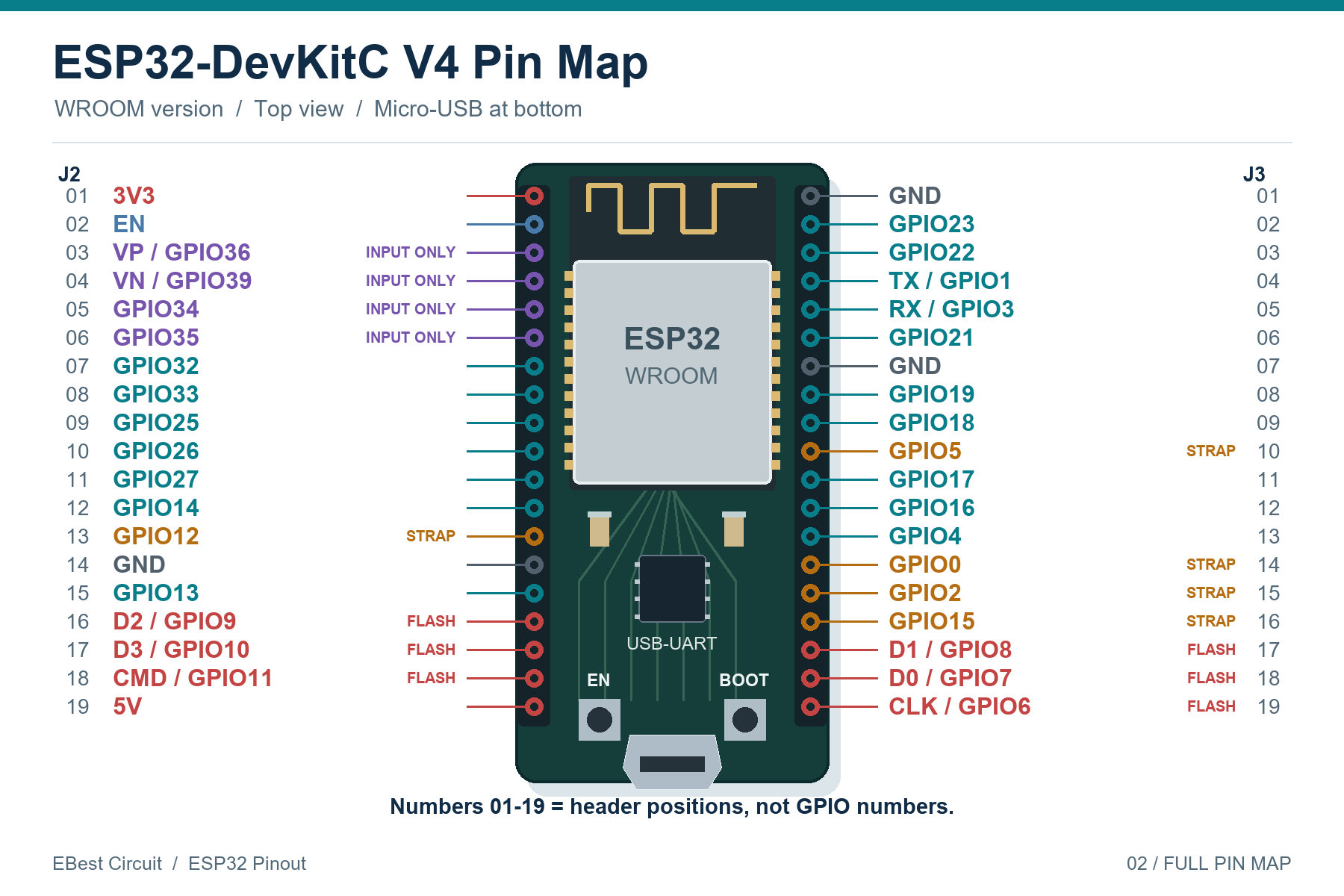
For example, GPIO21 is connected to position 6 on the DevKitC V4 J3 header. That does not make it “pin 6” in firmware. Code that selects GPIO21 must use the GPIO identifier expected by the software framework.
- Chip pin: a terminal on the ESP32 IC package.
- Module pad: a solder connection on the WROOM module.
- Header position: a connector contact on a development board.
Keep GPIO net names consistent between the schematic and firmware. For a custom carrier board, also check the viewing direction: a bottom-view drawing can reverse the apparent left/right order.
ESP32 Pinout Reference
For a classic WROOM-based board, GPIO18, 19, 21, 22, 23, 25, 26, 27, 32 and 33 are useful starting choices for general digital I/O, provided the board has not already assigned them to another circuit.
| Function | Classic ESP32 GPIOs | Selection rule |
| General digital I/O | 18, 19, 21, 22, 23, 25, 26, 27, 32, 33 | Check peripheral conflicts and connected hardware |
| Additional digital I/O | 4, 13, 14, 16, 17 | 13/14 can serve JTAG; 16/17 depend on module memory use |
| Input-only GPIOs | 34–39 at chip level | No output drive or internal pull-up/down; 37/38 are not exposed on the DevKitC reference headers |
| Boot strapping | 0, 2, 5, 12, 15 | Check external pull resistors and reset-time levels |
| Flash interface | 6–11 on WROOM | Do not assign to external peripherals |
| UART0 | TX: 1; RX: 3 | Normally used by the programming/debug connection |
| ADC1 exposed on DevKitC | 32, 33, 34, 35, 36, 39 | Preferred for analog sensing while Wi-Fi operates |
| DAC outputs | 25, 26 | Classic ESP32 only; do not assume every ESP32-family chip has these DACs |
“General I/O” does not mean every pin is suitable for every job. A pin used by an SPI display cannot simultaneously serve an unrelated sensor, and a GPIO should not directly power a relay or motor. Use an appropriate driver circuit for the load.
How Do 30-Pin and 38-Pin ESP32 Boards Differ?
The difference is the development board’s exposed connections and physical layout; it does not mean the 38-pin board has eight more usable GPIOs.
A typical ESP32 pinout 30 pin drawing describes a specific compact DevKit-style board. The official ESP32-DevKitC V4 has two 19-position headers, including supply, ground, control and flash-related contacts. Do not transfer a wire by its position from one format to the other.
The table below is a connector lookup for ESP32-DevKitC V4 with a WROOM module. Numbers are J2/J3 connector positions from Espressif’s header tables, not GPIO numbers. Confirm orientation against the board before wiring.
| Position | J2 label / signal | J3 label / signal |
| 1 | 3V3 | GND |
| 2 | EN | IO23 |
| 3 | VP / GPIO36 | IO22 |
| 4 | VN / GPIO39 | TX / GPIO1 |
| 5 | IO34 | RX / GPIO3 |
| 6 | IO35 | IO21 |
| 7 | IO32 | GND |
| 8 | IO33 | IO19 |
| 9 | IO25 | IO18 |
| 10 | IO26 | IO5 |
| 11 | IO27 | IO17 |
| 12 | IO14 | IO16 |
| 13 | IO12 | IO4 |
| 14 | GND | IO0 |
| 15 | IO13 | IO2 |
| 16 | D2 / GPIO9 — flash | IO15 |
| 17 | D3 / GPIO10 — flash | D1 / GPIO8 — flash |
| 18 | CMD / GPIO11 — flash | D0 / GPIO7 — flash |
| 19 | 5V | CLK / GPIO6 — flash |
Which ESP32 Pins Need Special Care?
Flash connections, input-only pins, strapping pins and module-specific PSRAM connections need review before they are connected to external hardware.
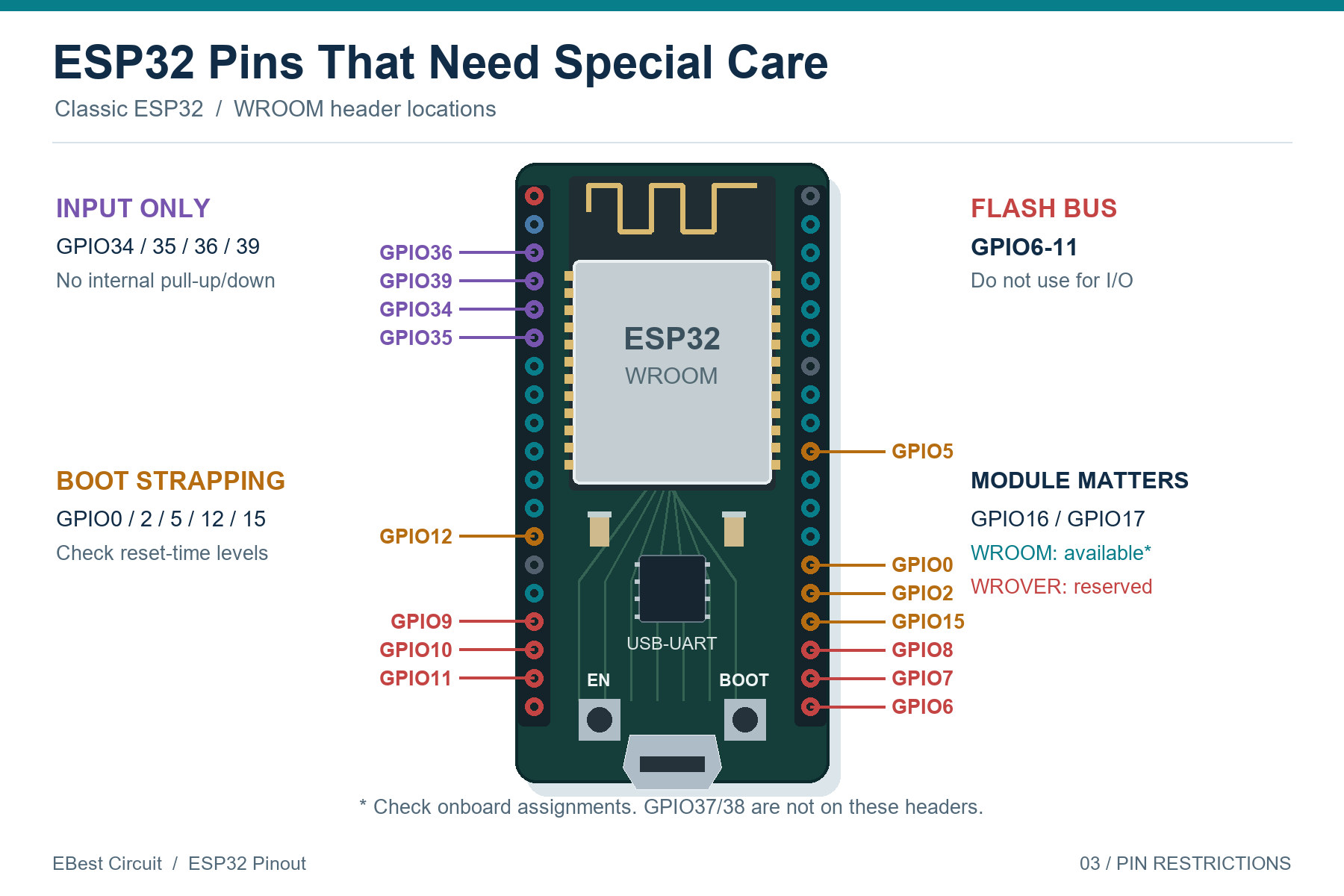
- GPIO6–11: leave the WROOM flash bus alone, even when the board exposes those contacts.
- GPIO34–39: use for inputs only. A floating switch input needs an external bias resistor.
- GPIO0: holding it low during reset selects serial download mode under the appropriate boot configuration.
- GPIO12: a high reset-time level can select 1.8 V for VDD_SDIO unless overridden by configuration. That can prevent a board using 3.3 V flash from booting.
- GPIO16/17: available on the WROOM-based DevKitC reference, but reserved on WROVER variants.
GPIO4 is not one of the classic ESP32’s five strapping pins. It can still be occupied by board hardware, so “not a strap” is not the same as “unused.” Check boot behavior with the peripheral attached and powered, not only with an unloaded board.
Can ESP32 Pins Use 5 V?
Do not apply 5 V to an ESP32 GPIO or the 3V3 rail. A development board’s 5V power input feeds its supply circuitry; it does not change the GPIO logic voltage.
- Connect 3.3 V peripherals using compatible signal levels and a common ground.
- Use suitable level translation when a peripheral drives 5 V signals toward the ESP32.
- Check sensor breakout-board pull-ups: a board powered from 5 V may also pull SDA/SCL up to 5 V.
- For DevKitC V4, use only one documented supply method at a time: USB, 5V/GND, or regulated 3V3/GND.
For a custom classic ESP32 design, Espressif recommends a 3.3 V supply capable of at least 500 mA. This is supply capability, not a claim that the device always consumes 500 mA. Include peripheral demand and transient performance when selecting the regulator. A weak supply can appear to be a pinout problem when the board resets during radio activity.
Which Pins Should You Use for I2C, SPI and UART?
GPIO21/22 are the Generic ESP32 Arduino I2C defaults; GPIO18/19/23 with GPIO5 are a common VSPI mapping; GPIO1/3 are UART0 TX/RX. Firmware can route many peripheral signals to other eligible pins.
| Interface | Example mapping | Important condition |
| I2C | SDA 21, SCL 22 | Pull-ups to the compatible logic rail; defaults vary by board definition |
| SPI / VSPI | SCLK 18, MISO 19, MOSI 23, CS 5 | GPIO5 is a strap; use another configured CS if the peripheral creates a reset conflict |
| UART0 | TX 1, RX 3 | Sharing with the USB bridge can interfere with upload or logs |
| Additional UART example | TX 17, RX 16 | Explicitly configure the mapping; WROOM example, not WROVER |
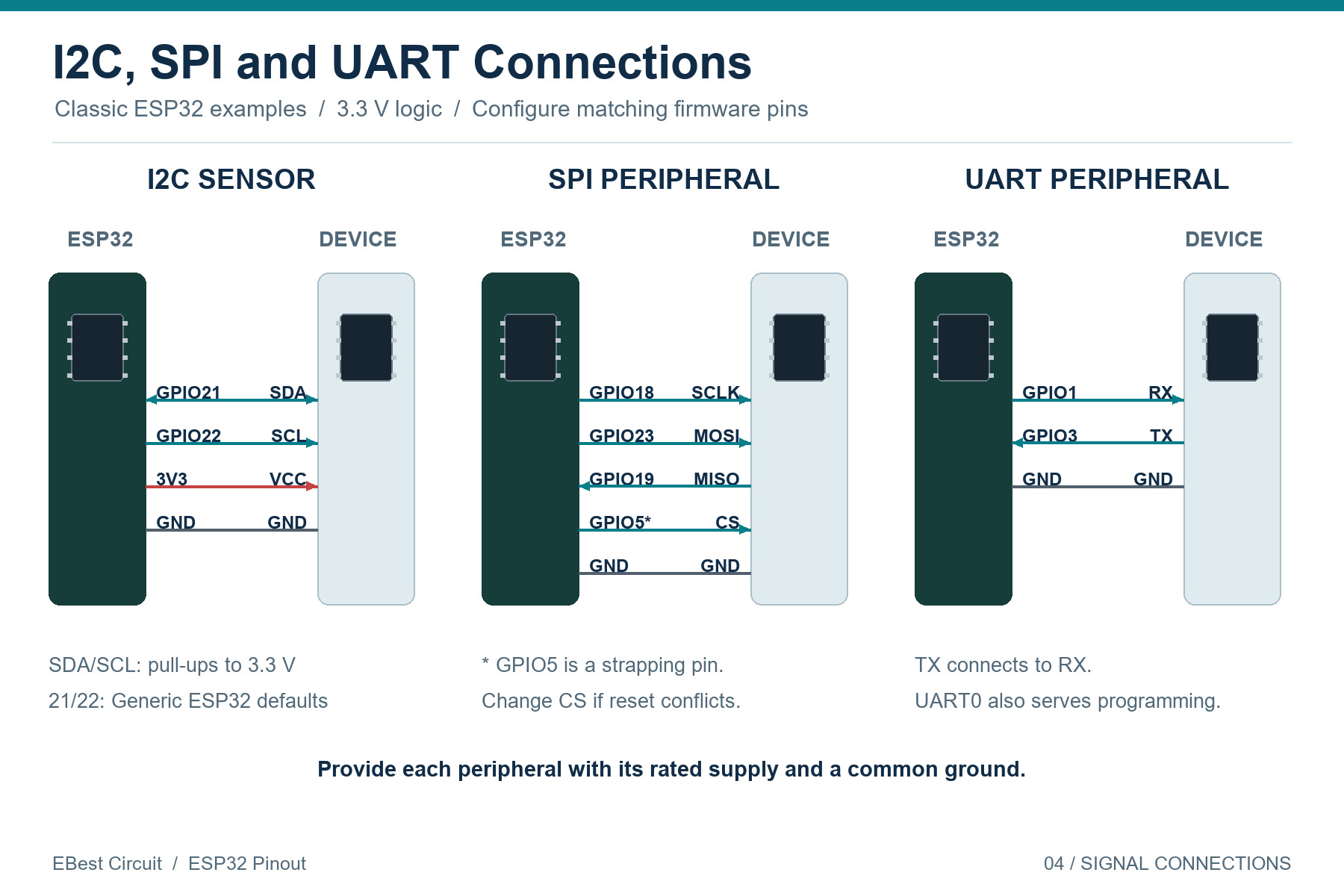
For a compatible 3.3 V sensor, connect VCC to 3V3, GND to GND, SDA to GPIO21 and SCL to GPIO22, then configure the same pins in firmware. The diagram shows signal connections, not physical header positions. SDA/SCL pull-ups must be provided on the sensor board or in your circuit.
Choose I2C pull-up resistance from bus capacitance, speed and device limits rather than treating one resistor value as universal. For UART, connect the ESP32 TX to the peripheral RX and the ESP32 RX to the peripheral TX. RS-232 and RS-485 require the appropriate transceiver; neither connects directly to GPIOs.
Which Pins Support ADC, DAC, PWM and Touch?
Classic ESP32 ADC1 inputs support analog sensing without the ADC2/Wi-Fi conflict; GPIO25 and GPIO26 provide DAC outputs; PWM uses eligible output GPIOs; touch sensing uses a defined subset of pins.
- ADC1: GPIO32–39 at chip level, with GPIO32, 33, 34, 35, 36 and 39 accessible on the DevKitC reference.
- ADC2: GPIO0, 2, 4, 12–15 and 25–27; analog access conflicts with Wi-Fi on the classic ESP32.
- DAC: two 8-bit channels on GPIO25 and GPIO26.
- PWM: choose an output-capable, otherwise available GPIO and configure the LEDC peripheral.
- Touch: GPIO0, 2, 4, 12–15, 27, 32 and 33 on the classic ESP32.
ADC range depends on attenuation and calibration; a 3.3 V logic supply does not promise accurate 0–3.3 V analog measurement. Check the configured measurement range and the sensor’s maximum output, including transients. The ADC2 restriction concerns analog conversion, not a blanket ban on using every ADC2-capable pin digitally during Wi-Fi operation.
Why Does an ESP32 Stop Booting After Wiring a Peripheral?
First check whether the peripheral changes a strapping level, loads the supply, drives a programming pin or touches the flash bus.
- Disconnect the added peripheral and verify the board boots again.
- Measure 3V3 and EN during startup. Look for supply dips rather than relying only on a steady-state meter reading.
- Check GPIO0 and other straps against the exact module’s boot requirements.
- Remove external loading from GPIO1/3 while testing firmware upload.
- Verify firmware GPIO names against the schematic; do not use header-position numbers as GPIO numbers.
If the board works until Wi-Fi starts, investigate regulator capacity, wiring resistance and decoupling. If only analog readings fail with Wi-Fi enabled, check whether the sensor is on ADC2. These are different failure mechanisms and need different fixes.
What Changes When You Put an ESP32 Module on a Custom PCB?
A custom board must reproduce the module’s required power, enable, boot and programming connections while respecting its footprint and antenna placement rules.
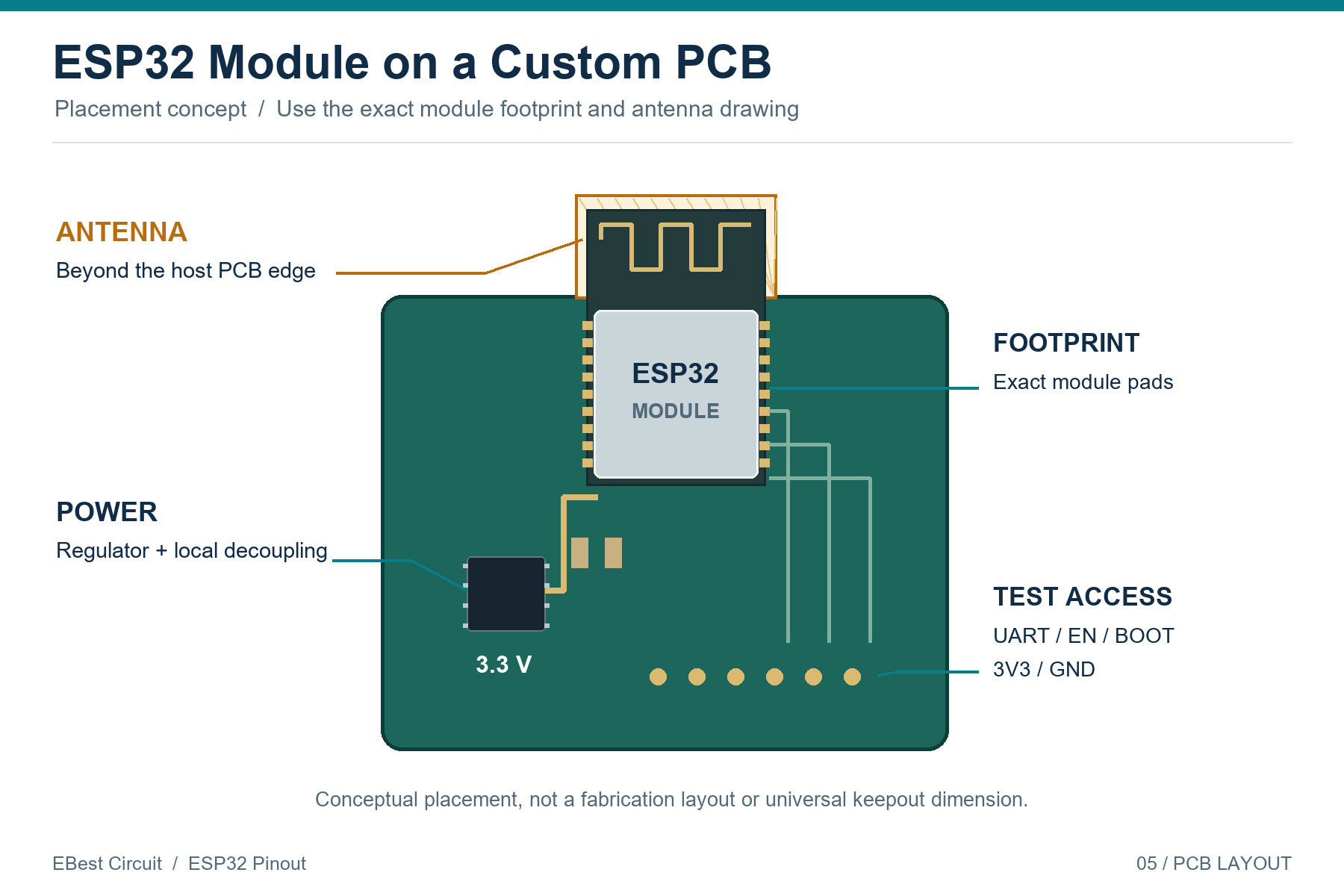
- Footprint: match the exact module pad numbering, orientation and exposed ground connection.
- Antenna: follow the module-specific keepout; do not place copper or components in an area the antenna drawing requires to be clear.
- Programming: preserve access to the required UART, EN, boot control and ground signals.
- Test access: provide measurable power rails and useful I/O test points before routing becomes congested.
- Assembly validation: inspect module joints and verify cold-start, firmware download and the intended peripheral operation.
Our PCB assembly services can support the transition from prototype to assembled hardware. Define the actual test sequence with the build: successful firmware download alone does not prove sensor accuracy, radio performance or behavior with every external load connected.
FAQ About ESP32 Pinout
Is an ESP32 pinout 38 pin diagram valid for every 38-pin board?
No. Matching pin count does not establish matching header order, regulator connections or onboard peripherals. Use the exact board schematic and revision.
Can I use GPIO34 to drive an LED?
No. GPIO34 is input-only on the classic ESP32. Choose an available output-capable GPIO and add suitable current limiting or a driver.
Are VP and VN power connections?
No. On the DevKitC reference, VP maps to GPIO36 and VN to GPIO39. They are input signals, not positive and negative supply terminals.
Does EN mean a normal GPIO?
No. EN controls the chip enable/reset function. Pulling it low resets the chip; it is not a general application output.
Can I reuse a classic ESP32 pin map for ESP32-S3?
No. Use the S3-specific datasheet and development-board schematic. Similar family names do not guarantee compatible GPIO assignments or peripheral features.
Does a USB-C connector mean the ESP32 has native USB?
No. A classic ESP32 development board can use USB-C through a USB-to-UART bridge. The connector shape does not identify how USB communication reaches the chip.
Need Help Moving Your ESP32 Prototype to a Custom PCB?
Bring the exact module part number, schematic and intended pin assignments into the review before PCB layout is finalized. At EBest Circuit, we can discuss fabrication, assembly and the test requirements for your custom board. Contact sales@bestpcbs.com with your design and project requirements.