

PCB manufacturing PCB manufacturing
Home > Blog

How Does PCB Design Impact Drone Communication?

April 14th, 2026

Drone communication​ is the backbone of unmanned aerial vehicle operations, enabling real-time control, telemetry, and payload data exchange between drones, controllers, and ground stations. This article explores how PCB design directly influences drone communication performance, signal integrity, and reliability across various applications including drone to drone communication​ and communication links for maritime drones.

What are the most common obstacles manufacturers face when designing reliable drone communication modules?

  • Signal interference​ from poorly routed RF traces causing data packet loss during critical missions.
  • Thermal management failures​ leading to communication module shutdowns in high-power transmission scenarios.
  • Electromagnetic compatibility issues​ disrupting drone connectivity​ when multiple systems operate simultaneously.
  • Miniaturization constraints​ forcing compromises on antenna placement and ground plane optimization.
  • Data transmission security vulnerabilities​ due to inadequate PCB shielding and encryption circuit integration.

To address these challenges, specialized PCBA manufacturers implement targeted design strategies that ensure optimal drone communication system​ performance.

  • Controlled impedance routing​ maintains signal integrity across drone communication protocols​ with minimal reflection.
  • Strategic thermal via placement​ dissipates heat from power amplifiers without compromising RF performance.
  • Multi-layer ground planes​ provide EMI shielding essential for adaptive drone communication​ in noisy environments.
  • HDI technology​ enables compact layouts while preserving antenna clearance and RF trace isolation.
  • Integrated security circuits​ embed encryption modules directly into the PCB for enhanced drone data transmission security.

EBest Circuit (Best Technology) specializes in high-frequency PCB and PCBA manufacturing for mission-critical communication drone​ applications. With ISO-certified production facilities and expertise in RF circuit PCB design, we deliver reliable solutions for companies supplying secure communications for tactical drones​ worldwide. Pls feel free to contact us at sales@bestpcbs.com for custom drone communication module​ development.

Drone Communication

What Is a Drone Communication Module and How Is It Designed?

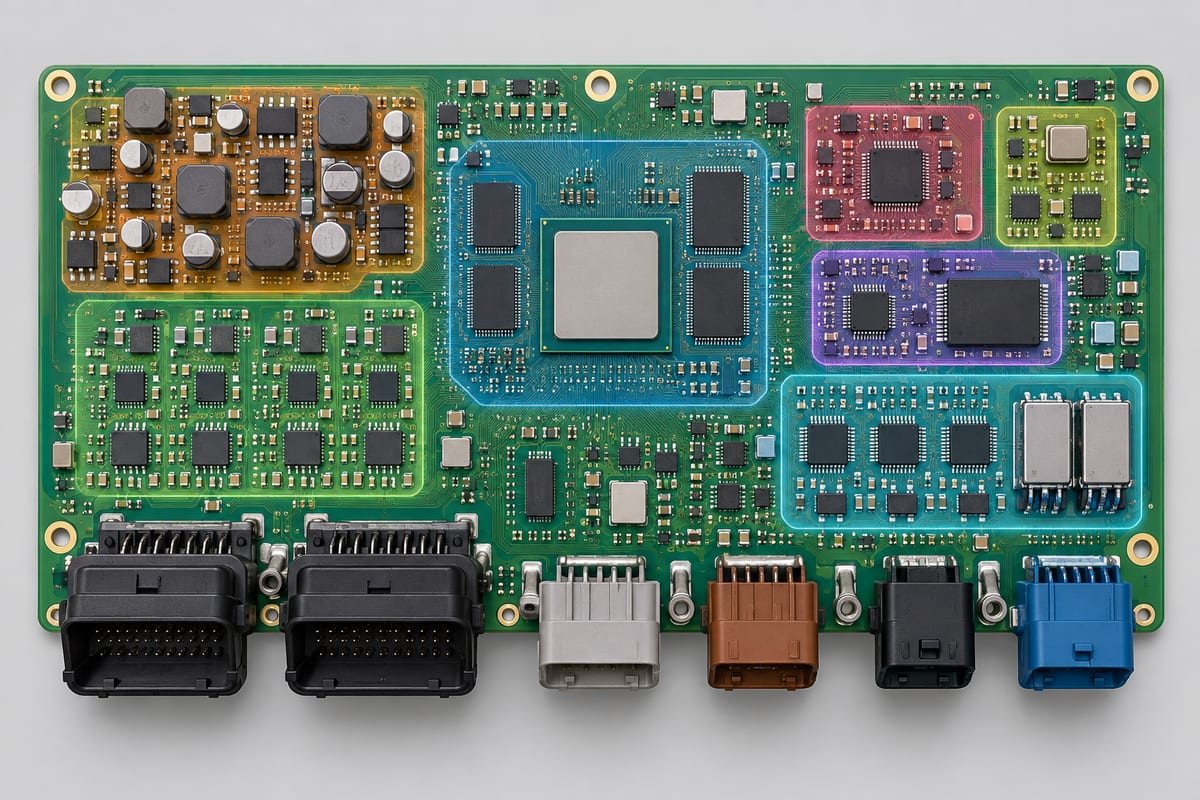
A drone communication module​ integrates RF transceivers, antennas, processors, and power management circuits onto a single PCB platform. PCB design determines everything from frequency stability to interference resistance in drone protocol​ implementation.

Design ElementFunctionImpact on Communication
RF Trace GeometryControls impedance matchingReduces signal reflection and loss
Ground Plane LayoutProvides reference and shieldingMinimizes EMI and crosstalk
Antenna Feed PointConnects RF circuit to radiatorOptimizes radiation efficiency
Power DistributionDelivers stable voltage to RF ICsPrevents modulation distortion
Thermal ManagementDissipates PA heatMaintains consistent output power

Effective module design requires careful stack-up planning where signal layers are sandwiched between ground planes. For drone to drone communication​ systems, PCB designers must account for multipath effects by optimizing antenna diversity through proper feed line separation. The choice of substrate material—typically Rogers or FR-4 with controlled dielectric constant—directly affects phase stability and insertion loss across operating frequencies.

How Do Drones Communicate with a Controller?

Drones maintain drone connectivity​ through dedicated communication links​ operating on standardized frequencies like 2.4GHz or 5.8GHz. PCB design impacts link budget calculations through trace losses, connector insertion loss, and antenna matching network efficiency.

Key communication pathways include:

  • Uplink commands​ transmitted from controller to flight controller via PWM or serial protocols.
  • Downlink telemetry​ sending battery status, GPS coordinates, and sensor data.
  • Video streaming​ requiring high-bandwidth drone data transmission​ for FPV applications.
  • Return-to-home signals​ ensuring failsafe operation when primary links degrade.

PCB layout considerations focus on isolating high-speed digital lines from sensitive RF circuits. Ground plane splits must be avoided under RF traces to prevent impedance discontinuities. For maritime drones, corrosion-resistant surface finishes and conformal coating protect communication circuits from salt spray exposure.

How Are Drones Used for Communication?

Beyond remote control, drones serve as airborne communication relays extending network coverage. Communication drones​ create temporary cellular networks or mesh networks using drone to drone communication​ protocols.

Applications include:

  • Emergency response​ establishing connectivity in disaster zones.
  • Military operations​ deploying tactical communication nodes.
  • Infrastructure inspection​ transmitting HD video over long distances.
  • Agricultural monitoring​ collecting sensor data across vast fields.

PCB design for relay drones emphasizes power efficiency and thermal dissipation since these platforms operate continuously. Multi-band support requires careful filtering to prevent intermodulation distortion between simultaneous drone communication methods.

How Could Drone Technology Impact Media and Communication?

Drone technology revolutionizes media production through aerial cinematography and live broadcasting. High-quality drone communication​ enables real-time 4K video transmission with low latency.

PCB design influences:

  • Video encoding efficiency​ through optimized processor placement and memory interface routing.
  • Transmission range​ by minimizing noise figure in RF front-end circuits.
  • Battery life​ via power-saving circuit architectures and efficient DC-DC conversion.

The integration of AI processing on-board requires PCBs that support high-speed interfaces while maintaining signal integrity​ for both control and payload data streams.

How Does PCB Design Impact Drone Communication Performance and Signal Integrity?

PCB design fundamentally determines drone communication performance​ through several critical mechanisms:

  • Impedance Control: Maintaining 50Ω characteristic impedance across RF traces prevents signal reflections. Formula:

where L is inductance and C is capacitance per unit length.

  • Crosstalk Reduction: Spacing RF traces >3× width apart minimizes coupling. Guard traces with ground vias further isolate sensitive signals.
  • Return Path Continuity: Ensuring uninterrupted ground reference beneath RF lines prevents common-mode noise pickup.
  • Phase Stability: Using low-loss materials (Df < 0.002) maintains consistent phase response across temperature variations.
  • Antenna Integration: Proper feed point design and ground plane clearance optimize radiation patterns for directional or omnidirectional coverage.

These factors collectively determine bit error rate (BER) and packet success rate in commercial drone communication protocols.

What Are the Key PCBA Assembly Challenges in Drone Communication Modules?

Manufacturing drone communication modules​ presents unique assembly hurdles:

ChallengeRoot CauseSolution
Fine-pitch RF IC placementComponent tolerances ±25μmAutomated optical alignment
BGA voiding under RF shieldsSolder paste volume controlX-ray inspection and stencil optimization
Antenna tuning sensitivityPCB thickness variationControlled impedance manufacturing
Thermal stress on connectorsCTE mismatchSelective soldering and underfill
EMI shield groundingIncomplete solder jointsConductive epoxy and compression mounting

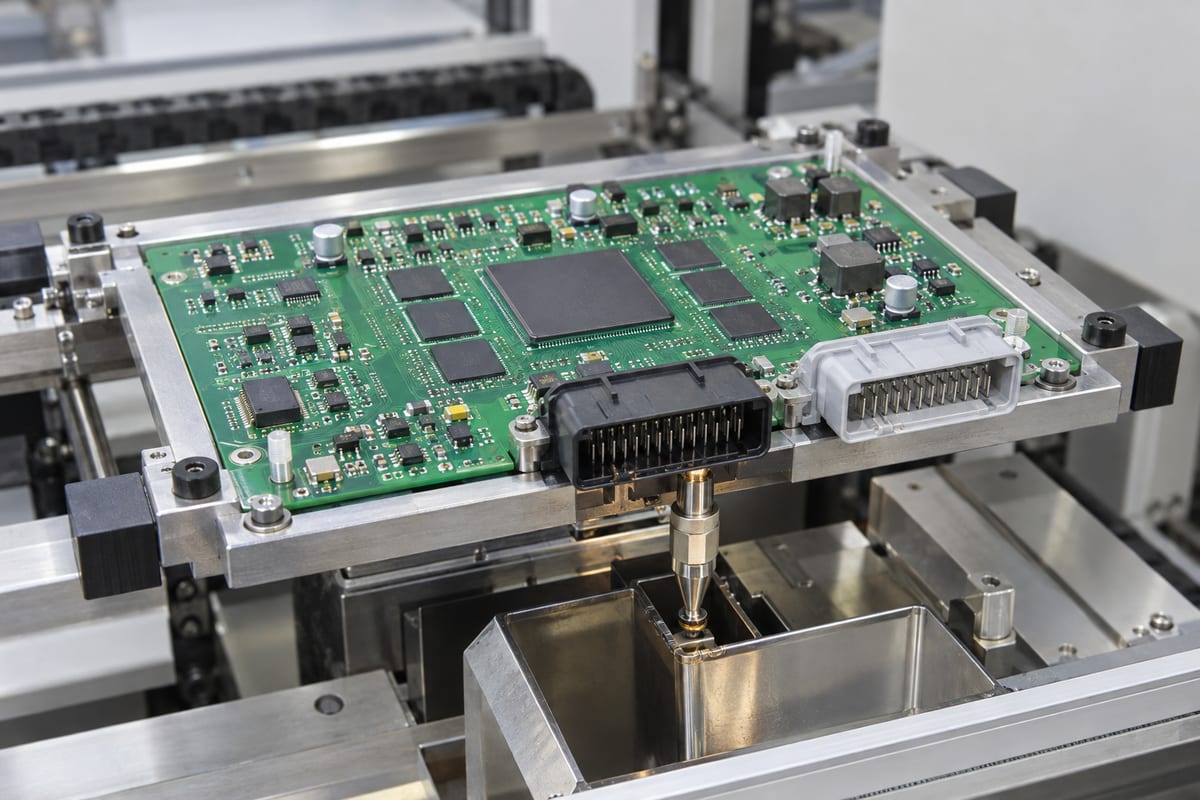
Assembly processes must maintain tight tolerances for RF performance. Reflow profiles require precise temperature control to prevent component shift. For secure communications for tactical drones, additional steps include tamper-evident coatings and secure programming of encryption keys during assembly.

Why Choose EBest Circuit (Best Technology) for Drone Communication PCB/PCBA?

EBest Circuit delivers specialized expertise in high-frequency PCB fabrication and assembly for drone communication systems.

Our capabilities include:

  • RF-specific materials​ including Rogers 4350B, 5880, and FR-4 with controlled dielectric constant.
  • Precision impedance control​ with ±5% tolerance for critical RF traces.
  • Advanced HDI technology​ supporting micro-vias and buried vias for compact designs.
  • Comprehensive testing​ including TDR, vector network analysis, and flying probe testing.
  • Quick-turn prototyping​ with 24-hour turnaround for urgent development cycles.

We understand the unique demands of adaptive drone communication​ and work closely with clients to optimize PCB layouts for their specific drone communication protocols. Our engineering team provides DFM feedback to improve yield and performance before mass production.

In conclusion, drone communication​ remains essential for safe and effective UAV operations, with PCB design serving as the foundation for reliable signal transmission and reception. This article has demonstrated how strategic PCB layout choices impact everything from basic controller links to sophisticated drone to drone communication​ networks. EBest Circuit (Best Technology) combines RF expertise with precision manufacturing to deliver superior drone communication modules​ for commercial and tactical applications. pls feel free to contact our engineering team at sales@bestpcbs.com to discuss your next drone communication system​ project.

FAQs About Drone Communication

How do drones communicate with their controllers?

Drones primarily use radio frequency (RF) signals to communicate with a handheld remote or ground station. The controller acts as a transmitter, converting your physical inputs (joystick movements) into digital data packets. These packets are sent wirelessly to the drone’s onboard receiver, which translates them into specific flight commands for the motors. Modern systems often use dual-link technology, where one signal controls the flight (Uplink) and another sends a live video feed and flight data back to the pilot (Downlink).

What frequency bands are most commonly used for drones?

Most consumer and professional drones operate on the 2.4 GHz and 5.8 GHz bands.

  • 2.4 GHz: Known for its longer range and better ability to penetrate obstacles like trees or thin walls, though it is often crowded with Wi-Fi and Bluetooth signals.
  • 5.8 GHz: Offers higher bandwidth for high-definition video streaming and is generally less congested, but it has a shorter effective range and is more easily blocked by physical barriers.Advanced industrial drones may also utilize 900 MHz for long-distance penetration or 4G/5G cellular networks for nearly unlimited range in areas with mobile coverage.

What happens if a drone loses its communication signal?

When the link between the controller and the drone is severed—a state known as “signal loss”—most modern drones trigger an automated Fail-Safe protocol. The most common response is Return-to-Home (RTH), where the drone uses GPS coordinates to fly back to its takeoff point and land. Other fail-safe options include “Hover,” where the drone stays in place waiting for the signal to reconnect, or “Land,” where it descends immediately to the ground to prevent drifting.

Can drones communicate with each other?

Yes, this is typically referred to as Drone Swarming or M2M (Machine-to-Machine) communication. In a swarm, drones use localized mesh networks—often via Wi-Fi, Bluetooth, or specialized RF protocols—to share real-time data such as position, speed, and heading. This allows multiple aircraft to coordinate movements, avoid collisions with one another, and perform complex tasks as a single synchronized unit without requiring individual pilot input for every drone.

What Is Lead Free Solder Material? Composition, Properties & Comparison Guide

April 14th, 2026

What is lead free solder material and why is it essential for modern electronic projects? This guide covers its composition, properties, common alloys, and comparisons with leaded solder to help you make informed choices for your project.

What is Lead Free Solder Material?

Lead free solder material is a tin based alloy designed to replace traditional leaded solder, containing no added lead to meet global environmental and safety standards. It is used to join metal components in electronics plumbing and jewelry creating strong reliable connections while eliminating the health and environmental risks associated with lead exposure.

Unlike leaded solder which relies on lead to lower melting points and improve workability, lead free solder uses alternative alloying elements to achieve similar or better performance. It is mandatory in most commercial electronics due to regulations like RoHS and the Safe Drinking Water Act which restrict lead use to protect workers consumers and the environment.

Simply put, lead free solder is a safer, compliant, and increasingly standard choice for modern electronic assembly.

Lead Free Solder Material, https://www.bestpcbs.com/blog/2026/04/lead-free-solder-material/

What is Lead Free Solder Made of?

Lead free solder is primarily composed of tin as the base metal since tin is non toxic, has good ductility, and bonds well with most electronic components. To optimize its performance manufacturers add small amounts of other alloying elements each serving a specific purpose.

The most common additives are silver, copper, and bismuth, though antimony, nickel, and indium are used in specialized formulations. Silver improves wetting ability mechanical strength and electrical conductivity making solder joints more durable.

Copper lowers the melting point, forms a stable intermetallic compound with tin, and reduces erosion of copper pads on circuit boards. Bismuth significantly lowers the melting temperature which is critical for soldering heat sensitive components.

These elements work together to address the limitations of pure tin, which is too brittle and has a high melting point for practical electronic use. Every additive is carefully measured to balance performance cost and compliance with safety standards.

What are the Lead Free Solder Composition Percentages of Common Alloys?

The composition of lead free solder varies by alloy, each tailored to specific applications. Below are the most common lead free solder alloys used in electronics along with their exact composition percentages. These alloys are industry standard and widely available for both commercial and hobbyist use.

Alloy NameTin (Sn) PercentageAlloying Elements PercentagePrimary Application
SAC30596.5%3.0% Silver (Ag), 0.5% Copper (Cu)General purpose electronics, automotive electronics, consumer devices
SAC40595.5%4.0% Silver (Ag), 0.5% Copper (Cu)High reliability applications, aerospace and medical devices
Sn-Cu 0.799.3%0.7% Copper (Cu)Cost sensitive projects, low volume assembly, basic electronics
Sn-Bi 42/5842%58% Bismuth (Bi)Heat sensitive components, low temperature soldering
Sn-Ag 3.596.5%3.5% Silver (Ag)Precision electronics, high frequency circuits

Lead Free Solder Melting Temperature Chart

Melting temperature is a critical property of lead free solder, as it determines the soldering temperature required to form a strong joint. Unlike leaded solder which often has a single eutectic melting point many lead free alloys have a melting range (liquidus and solidus temperature). Below is a clear chart of common lead free alloys, their melting ranges, and key notes to help you select the right solder for your project.

Alloy NameSolidus Temperature (°C)Liquidus Temperature (°C)Soldering Temperature (°C)Key Notes
SAC305217221240-260Most common general purpose alloy, narrow melting range
SAC405216220245-265Higher silver content for improved strength and reliability
Sn-Cu 0.7227227250-270Eutectic alloy, cost effective but lower wetting ability
Sn-Bi 42/58138138150-170Lowest melting point, ideal for heat sensitive components
Sn-Ag 3.5221221240-260High conductivity, suitable for precision electronics

What are the Material Properties of Lead-Free Solder?

Lead free solder has distinct material properties that make it suitable for modern electronics, balancing safety, performance, and compliance. The key properties are as follows:

  • Mechanical property: Higher tensile strength than leaded solder, good ductility, and stronger resistance to thermal cycling and mechanical wear.
  • Electrical property: Slightly lower conductivity than leaded solder, with silver-rich alloys having better conductivity for precision use.
  • Thermal property: Higher melting point, better thermal conductivity, and slightly higher thermal expansion than circuit boards.
  • Wetting property: Lower wetting ability than leaded solder, requiring active flux and clean surfaces for good bonding.
Lead Free Solder Material, https://www.bestpcbs.com/blog/2026/04/lead-free-solder-material/

What are the Main Differences between Leaded vs Lead-Free Solder?

Understanding the differences between leaded and lead free solder is critical for choosing the right material for your project. While leaded solder was once the industry standard lead free options have replaced it in most commercial applications due to safety and regulatory requirements. Below is a comprehensive comparison table highlighting the key differences between the two.

PropertyLeaded Solder (Sn-Pb 63/37)Lead Free Solder (SAC305 as Reference)
Composition63% Tin 37% Lead96.5% Tin 3.0% Silver 0.5% Copper
Melting Temperature183°C (eutectic)217-221°C
ToxicityHighly toxic contains lead which causes neurological damage and environmental pollutionNon toxic no lead though some alloying elements may have low toxicity in large doses
Electrical ConductivityHigh resistivity 12.6 μΩ·cmModerate resistivity 14.2 μΩ·cm
Mechanical StrengthGood tensile strength 25 MPa lower fatigue resistanceHigh tensile strength 32 MPa better fatigue resistance
Wetting AbilityExcellent easy to spread with minimal fluxModerate requires active flux and clean surfaces
CostLow cost lead is inexpensiveHigher cost due to silver and copper additions
Regulatory ComplianceNon compliant with RoHS Safe Drinking Water Act and most global regulationsCompliant with all major environmental and safety regulations
WorkabilityEasy to work with lower soldering temperature smooth flowRequires higher soldering temperature more precise technique

Between Lead and Lead Free Solder, What is the More Aggressive Material?

Lead free solder is generally more aggressive than leaded solder, especially when it comes to eroding copper and stainless steel surfaces. Aggressiveness refers to the rate at which the solder dissolves the base metal (like copper pads on circuit boards) during soldering and long term use.

Studies show that common lead free alloys like SAC305 and Sn-Cu 0.7 have higher copper erosion rates than traditional Sn-Pb solder. SAC305 is the most aggressive among tested alloys while Sn-Cu 0.7 with added nickel (0.05%) is the least aggressive even less so than Sn-Pb.

The addition of phosphorus to lead free alloys further increases their aggressiveness, accelerating copper erosion. This aggressiveness can lead to thinner copper pads over time reducing the lifespan of circuit boards.

To mitigate this, use nickel stabilized lead free alloys, ensure proper soldering temperatures, and avoid excessive heating times.

Leaded vs Lead-Free Solder, https://www.bestpcbs.com/blog/2026/04/lead-free-solder-material/

What are the Acceleration Factors for Lead Free Solder Materials?

Acceleration factors are variables that speed up the degradation of lead free solder joints, helping predict their long term reliability without waiting for real world testing. The key acceleration factors for lead free solder materials are thermal cycling temperature range maximum temperature cycle time and humidity.

Thermal cycling, which involves repeated heating and cooling, is the most significant factor as it causes stress in solder joints due to differences in thermal expansion. A wider temperature range and higher maximum temperature increase stress accelerating fatigue.

Cycle time also matters—shorter cycles increase the frequency of stress, leading to faster degradation. Humidity can cause corrosion especially in high temperature environments reducing joint strength over time.

These factors are used in accelerated testing models to predict solder joint lifetime with an error margin of less than 6% when calibrated with experimental data.

How to Choose the Right Lead Free Solder Material for Your Electronic Project?

Choosing the right lead free solder material depends on four key factors: your project’s application, temperature requirements, cost constraints, and regulatory needs. Below are the key steps to make the right choice, presented in a clear, itemized format:

  • General purpose electronics: Smartphones, laptops and automotive electronics are suitable for SAC305, which well balances reliable performance and reasonable cost for daily use.
  • High-reliability applications: Aerospace and medical devices need SAC405, as its higher silver content enhances joint strength and stability for long-term use.
  • Heat-sensitive components: Sensors and LEDs should use Sn-Bi 42/58, whose low melting point (138℃) can avoid damaging fragile electronic parts during soldering.
  • Cost-sensitive projects: Low-volume basic electronics can choose Sn-Cu 0.7, the most affordable lead-free option that meets basic soldering needs.
  • Soldering equipment check: Ensure your soldering equipment can reach the required temperature of the selected alloy, as different alloys have different soldering temperature requirements.
  • Regulatory compliance: Verify the manufacturer’s certification to ensure RoHS compliance for commercial products, which is mandatory for products sold in most global markets.
  • Alloy testing: Test the selected alloy with your components to ensure good wetting and joint strength, which helps avoid poor connections and ensures project reliability.
Lead Free Solder Material, https://www.bestpcbs.com/blog/2026/04/lead-free-solder-material/

FAQs About Lead Free Solder Material

Q1: Is lead free solder really lead free?

A1: Yes, lead free solder is really lead free in accordance with global standards. It contains no added lead and has a maximum lead impurity level of 0.1% (1000ppm) to comply with RoHS and other regulations. This trace amount is negligible and does not pose health or environmental risks. Some older or low quality solders may have higher lead levels so always check the manufacturer’s certification to ensure compliance.

Q2: Is 63/37 solder lead free?

A2: No, 63/37 solder is not lead free. It is a traditional leaded solder composed of 63% tin and 37% lead by weight. It is non compliant with RoHS and other environmental regulations and should not be used in commercial electronics or applications where lead exposure is a concern.

Q3: Is 50/50 solder lead free?

A3: No, 50/50 solder is not lead free. It is a leaded solder with a composition of 50% tin and 50% lead. It contains toxic lead and is not compliant with environmental regulations, so it should be avoided in modern electronic projects that require RoHS compliance.

Q4: How can I tell if my solder is lead free?

A4: You can tell if your solder is lead free by checking three key things: packaging certification, physical appearance, and melting temperature. Lead free solder packaging will have RoHS certification marks or state lead free on the label. It is usually brighter and shinier than leaded solder, which has a dull gray appearance. Lead free solder melts at 217°C or higher while leaded solder melts at 183°C. You can also use a lead test kit to detect lead content in unlabeled solder.
Q5: Is lead-free solder still toxic?

A5: No, lead free solder is not toxic. It eliminates the most harmful component, lead, which causes neurological damage and environmental pollution. The alloying elements (silver, copper, bismuth) are non toxic in normal use. However, you should still use proper ventilation when soldering as flux fumes can be irritating. Avoid ingesting or inhaling solder particles and wash your hands after handling to ensure safety.

X-Ray Inspection for PCB Assembly

April 14th, 2026

X-ray inspection is one of the most critical quality control methods in modern PCB assembly, especially for designs involving BGA, QFN, and high-density multilayer boards. As electronic products become smaller and more powerful, hidden defects such as voids, cracks, and insufficient solder joints are increasingly difficult to detect using traditional inspection methods.

In high-reliability industries like automotive, medical, and aerospace, these invisible defects are often the root cause of early product failure. This is why PCB X-ray inspection has become a standard process for manufacturers aiming to ensure long-term performance and minimize field returns.

X-Ray Inspection for PCB Assembly

What is X-Ray Inspection in PCB Manufacturing?

X-ray inspection is a non-destructive testing (NDT) technique used to analyze the internal structure of PCB assemblies without damaging them. It works by passing X-rays through the board and capturing differences in material density to generate a grayscale image.

In PCB assembly, X-ray inspection is commonly used to:

  • Verify solder joint integrity under BGA and QFN packages
  • Detect internal defects such as voids and cracks
  • Analyze multilayer PCB structures and via quality

Compared to AOI, which only inspects visible surfaces, X-ray inspection for PCB assembly provides a complete internal view, making it essential for high-density designs.

What Defects Can X-Ray Inspection Detect in PCBs?

X-ray inspection excels at detecting internal defects that are inaccessible to optical or electrical testing methods. These defects often originate from soldering issues, material inconsistencies, or process variations.

Defect TypeDescriptionImpact
Solder VoidsAir gaps within solder jointsReduced thermal and mechanical strength
Solder BridgesUnintended connections between padsShort circuits
Insufficient SolderIncomplete joint formationWeak electrical connection
Missing SolderNo connection at jointOpen circuit
Head-in-Pillow (HIP)Poor wetting between ball and padIntermittent failure
MisalignmentOffset components or ballsReliability issues
Internal CracksStructural defects in jointsLong-term failure
Via DefectsBarrel cracks or voidsSignal and power integrity issues

Among these, voids in BGA solder joints are one of the most critical concerns. Excessive voiding reduces effective thermal conduction, leading to localized overheating. This is particularly problematic in high-power designs such as LED drivers or automotive control modules.

Which Components Usually Require X-Ray Inspection?

Not all components require X-ray inspection. It is typically used for packages with hidden or partially hidden solder joints.

Common Components Requiring X-Ray Inspection

  • BGA (Ball Grid Array)
  • Micro BGA
  • QFN (Quad Flat No-Lead)
  • LGA (Land Grid Array)
  • CSP (Chip Scale Package)
  • Flip-chip devices
Which Components Usually Require X-Ray Inspection?

These components are widely used in high-performance electronics. Their solder joints are located underneath the package, making external inspection ineffective. For these cases, X-ray inspection is the only reliable way to validate solder joint integrity.

When Should You Use X-Ray Inspection Instead of AOI?

AOI (Automated Optical Inspection) is widely used due to its speed and cost-effectiveness, but it is inherently limited to surface-level analysis. X-ray inspection in PCB assembly complements AOI by providing internal visibility.

Inspection Method Comparison

ParameterAOIX-rayICT
Inspection TypeVisualInternalElectrical
Defect CoverageSurface defectsHidden defectsFunctional issues
CostLowMediumHigh
SpeedFastModerateSlow
Typical UsePlacement, polarityBGA/QFN inspectionCircuit validation

In practice, X-ray inspection should be used when:

  • The design includes hidden solder joints (BGA, QFN, LGA)
  • The product requires high reliability (automotive, medical)
  • There is a history of intermittent failures
  • AOI results are inconclusive

How Does X-ray Inspection Work in PCB Assembly?

The X-ray inspection system consists of an X-ray source, a detector, and an imaging system. The PCB is placed between the source and detector, and radiation passes through the assembly.

Key technical mechanisms include:

  • Differential absorption: Materials with higher atomic numbers absorb more X-rays
  • Magnification control: Enables micro-scale inspection of solder joints
  • Digital image processing: Converts signals into high-resolution images

Advanced systems also incorporate:

  • Automated defect recognition (ADR)
  • Real-time measurement tools
  • Image comparison algorithms

What Are the Main Types of X-Ray Inspection Systems?

Different applications require different levels of inspection capability. X-ray systems are generally categorized into several types.

Types of X-Ray Systems

TypeDescriptionApplication
2D X-RayFlat image inspectionGeneral inspection
2.5D X-RayAngled viewsImproved defect visibility
3D CT (Computed Tomography)Layer-by-layer imagingAdvanced failure analysis
AXI (Automated X-Ray Inspection)Automated inline inspectionHigh-volume production

In conclusion:

  • 2D systems are cost-effective and widely used
  • 3D CT systems provide the highest accuracy but are slower and more expensive
  • AXI systems are ideal for automated production lines

What is the Difference Between 2D X-Ray and 3D CT Inspection?

Choosing the right X-ray technology depends on inspection objectives and budget considerations.

2D vs 3D CT Comparison

Feature2D X-ray3D CT
Imaging TypeProjectionVolumetric
Inspection SpeedFastSlow
CostLowerHigher
Defect DetectionGeneralDetailed internal
ApplicationProduction lineFailure analysis

2D X-ray is commonly used for inline inspection due to its speed and efficiency. In contrast, 3D CT provides cross-sectional views, enabling detailed analysis of complex defects such as internal cracks or multilayer misalignment.

How Much Does X-Ray Inspection Cost in PCB Manufacturing?

Cost is a critical consideration, especially for high-volume production. X-ray inspection pricing varies depending on inspection complexity, equipment type, and throughput requirements.

Typical Cost Breakdown

Production StageCost per BoardNotes
Prototype$5–$20Manual inspection, low volume
Small batch$2–$8Semi-automated
Mass production<$1Inline automated systems

Although it introduces additional cost, X-ray inspection significantly reduces:

  • Field failure rates
  • Warranty claims
  • Rework and scrap costs

What Standards Define Acceptable X-ray Inspection Results?

Industry standards play a crucial role in defining acceptable defect thresholds. The most commonly referenced standards include:

  • IPC-A-610: Acceptability of electronic assemblies
  • IPC-7095: Design and assembly process for BGAs

Typical Acceptance Criteria Example

Application ClassVoid LimitReliability Requirement
Class 1Up to 30%Consumer electronics
Class 2<25%Industrial
Class 3<20%Aerospace, medical

What Are the Limitations of X-Ray Inspection?

Despite its advantages, X-ray inspection is not a complete solution. Understanding its limitations is essential for building an effective inspection strategy.

Key limitations include:

  • Limited detection of surface contamination
  • Overlapping structures in dense assemblies
  • Requirement for skilled interpretation
  • Higher equipment investment

For optimal results, X-ray inspection should be combined with AOI, ICT, and functional testing.

How to Interpret X-Ray Inspection Images Correctly?

Accurate interpretation is critical for effective defect detection. Engineers typically evaluate:

  • Void distribution and percentage
  • Solder joint symmetry
  • Presence of cracks or gaps
  • Alignment of components

Consistency is achieved through:

  • Reference images
  • Standardized criteria
  • Software-assisted analysis

Misinterpretation can lead to false positives or missed defects, so training and experience are essential.

FAQs About X-Ray Inspection

1. What is X-ray inspection used for in PCB assembly?

X-ray inspection in PCB assembly is used to detect hidden internal defects that cannot be seen by visual inspection or AOI. It is commonly used to check solder joints under BGA, QFN, LGA, and other bottom-terminated components. It also helps verify solder quality, voiding, bridging, and internal connection integrity before products move to shipment or reliability testing.

2. Can X-ray inspection detect BGA defects?

Yes, X-ray inspection can detect BGA defects accurately because BGA solder joints are hidden beneath the component body. It is widely used to find solder voids, bridges, missing balls, insufficient solder, head-in-pillow defects, and ball misalignment. For BGA assembly, X-ray inspection is one of the most reliable quality control methods.

3. What defects can X-ray inspection find that AOI cannot?

X-ray inspection can find hidden solder defects that AOI cannot see. These include internal voids, solder bridging under bottom-terminated packages, missing solder joints, incomplete wetting, and internal cracks in some assemblies. AOI is useful for visible surface defects, while X-ray inspection is necessary for hidden joint analysis.

4. Is X-ray inspection destructive?

No, X-ray inspection is a non-destructive inspection method. It allows engineers to inspect the inside of a PCB assembly without cutting, breaking, or damaging the board. This makes it suitable for prototype verification, production inspection, and failure analysis.

5. When should 3D CT X-ray inspection be used?

3D CT X-ray inspection should be used when a standard 2D X-ray image does not provide enough detail. It is useful for complex assemblies, multilayer structures, internal failure analysis, and precise root-cause investigation. Compared with 2D X-ray, 3D CT gives a clearer view of internal structures layer by layer.

6. Is X-ray inspection required for every PCB assembly?

No, X-ray inspection is not required for every PCB assembly. It is usually recommended for boards with hidden solder joints, high-density packaging, high-power devices, or strict reliability requirements. For simple boards with fully visible joints, AOI and visual inspection may be enough.

Automotive MCPCB Design Guide: Thermal & Reliability Best Practices

April 13th, 2026

Looking for high-performance, reliable automotive MCPCB design that excels in heat dissipation, extreme environments, and long-term durability? This guide covers everything you need to know about automotive-grade MCPCB design, thermal best practices, reliability solutions, and how to get the most stable and high-quality products for your automotive electronic applications.

EBest provides high-performance automotive MCPCB design with excellent thermal conductivity, full automotive certifications, and extreme environment adaptability for reliable vehicle electronics.

Automotive MCPCB Design, https://www.bestpcbs.com/blog/2026/04/automotive-mcpcb-design/

Why Choose EBest for Your Automotive MCPCB Design Needs?

We deliver fully customized automotive MCPCB design solutions tailored to the strict requirements of the automotive industry, focusing on thermal efficiency, structural stability, and long‑term performance for critical vehicle electronics. Every design is optimized to eliminate overheating risks, improve component lifespan, and ensure stable operation under harsh conditions.

We provide end‑to‑end engineering support throughout the entire design and validation process, including professional thermal simulation, DFM analysis, reliability testing, and structural optimization. Our technical team works closely with you to resolve design challenges, reduce development cycles, and ensure your project meets all automotive quality standards.

We maintain a stable, automotive‑grade supply chain and robust quality control system, ensuring consistent material quality, strict production standards, and reliable delivery for both prototype development and large‑scale applications. Our solutions are built to reduce failure risks and enhance the overall performance of your automotive electronic systems.

Our Certifications & Quality System for Automotive MCPCB Design

  • IATF 16949: Full process control for automotive manufacturing, eliminating quality risks
  • ISO 9001:2015: Universal quality management system ensuring consistent product quality
  • ISO 13485:2016: High‑reliability control suitable for critical electronic components
  • AS9100D: Stringent aerospace‑grade quality standards for maximum stability
  • REACH & RoHS: Environmental compliance meeting global regulatory standards
  • UL: Safety certification for high‑stability electronic applications

These certifications ensure every automotive MCPCB design from EBest meets strict automotive safety, reliability, and compliance standards.

What Are the Pain Points in Automotive MCPCB Design?

Pain Point 1: Poor heat dissipation leading to component overheating
Our Solution: Optimized thermal stack‑up, high‑conductivity substrates, and professional thermal via design for efficient heat transfer.

Pain Point 2: Insufficient reliability under thermal cycling and vibration
Our Solution: Automotive‑grade materials, reinforced structural design, and strict reliability testing to resist extreme conditions.

Pain Point 3: Design for Manufacturing (DfM) issues causing low production yield
Our Solution: Pre‑production DfM review, standardized design guidelines, and production‑friendly layout optimization.

Pain Point 4: Inconsistent material quality affecting long‑term performance
Our Solution: Certified automotive‑grade raw materials and full batch traceability for consistent quality.

Pain Point 5: Long lead times delaying project development
Our Solution: Rapid design validation, streamlined production lines, and fast prototype services.

Pain Point 6: Non‑compliance with automotive industry standards
Our Solution: Full adherence to IATF 16949 and global automotive regulations with complete certification support.

    How Does Thermal Management Impact Automotive MCPCB Performance?

    Effective thermal management is the foundation of stable and long‑lasting automotive MCPCB design in vehicle electronics. Without proper heat control, power components such as LEDs, drivers, and control modules will overheat, leading to performance degradation, shortened lifespan, and even sudden failures.

    High thermal conductivity in MCPCB designs quickly transfers heat away from heat‑generating components, maintaining safe operating temperatures even under continuous high loads. This directly improves the stability, efficiency, and durability of automotive electronic systems.

    Our automotive MCPCB design integrates advanced thermal management strategies, including optimized dielectric layers, heavy copper layouts, and strategic thermal vias, to maximize heat dissipation and ensure reliable performance in real‑world driving conditions.

    Automotive MCPCB Design, https://www.bestpcbs.com/blog/2026/04/automotive-mcpcb-design/

    What Materials Are Best for Automotive MCPCB Design?

    Material TypeKey BenefitsIdeal Applications
    Aluminum Core SubstrateLightweight, cost‑effective, good thermal conductivityGeneral automotive lighting, control modules
    Copper Core SubstrateUltra‑high thermal conductivity, excellent heat dissipationHigh‑power EV components, inverters, BMS
    High‑Performance DielectricStrong electrical isolation, enhanced thermal transferCritical safety systems, high‑temperature environments
    Heavy Copper FoilHigh current carrying capacity, improved heat spreadPower distribution, motor control units

    How to Ensure Reliability in Automotive MCPCB Design?

    Reliability is non‑negotiable in Automotive MCPCB design due to the harsh conditions of vehicle operation, including extreme temperatures, vibration, humidity, and thermal shock. Poor reliability can lead to system failures and safety risks.

    Our design process includes comprehensive thermal cycling testing, vibration simulation, humidity resistance testing, and service life evaluation to validate performance before mass production. We only use qualified automotive‑grade materials to ensure stability.

    EBest’s integrated design and quality system ensures every automotive MCPCB maintains consistent performance over long lifecycles, even in the most demanding under‑hood and on‑board environments.

    What Is DFM in Automotive MCPCB Design and Why Does It Matter?

    Design for Manufacturing (DfM) is a critical process in Automotive MCPCB design that optimizes layouts, structures, and dimensions for stable, high‑yield production. It bridges design theory and real‑world manufacturing capabilities.

    Without effective DFM analysis, designs may face issues such as difficult assembly, low production yield, structural defects, and increased failure rates. This leads to delays, rework, and higher long‑term costs.

    Our engineering team provides professional DfM reviews at the early design stage, optimizing trace widths, clearances, component placement, and thermal structures. This ensures smooth production, consistent quality, and high reliability for every project.

    How to Optimize Thermal Conductivity in Automotive MCPCB Design?

    Thermal conductivity optimization is central to high‑performance automotive MCPCB design. The goal is to create a fast, efficient heat path from power components to the heat sink and surrounding environment.

    Key methods include selecting high‑thermal‑conductivity metal core substrates, using thin, high‑performance dielectric layers, adding thermal vias, and increasing copper thickness for better heat spreading. Each parameter is customized based on power load and environment.

    Our engineering team uses professional thermal simulation tools to design the best thermal solution for your specific application, ensuring maximum heat dissipation and stable operating temperatures.

    Automotive MCPCB Design, https://www.bestpcbs.com/blog/2026/04/automotive-mcpcb-design/

    What Are Real‑World Applications of Automotive MCPCB Design?

    Automotive MCPCB design is widely used in core automotive electronic systems, including LED headlights and taillights, electric vehicle powertrain modules, battery management systems (BMS), engine control units, and ADAS sensors.

    In a real‑world case, our customized automotive MCPCB design solved severe overheating problems in automotive LED headlights. The original design suffered from heat buildup and rapid lumen depreciation.

    After implementing our thermal‑optimized MCPCB solution, the operating temperature dropped significantly, service life improved by 200%, and the product passed rigorous thermal cycling and vibration tests required by automotive manufacturers.

    How Does Extreme Environment Affect Automotive MCPCB Design?

    Automotive electronics operate in extremely harsh environments, including high and low temperatures, rapid temperature changes, strong vibration, humidity, and chemical exposure. These conditions directly determine the requirements for automotive MCPCB design.

    Standard electronic components cannot withstand these stresses, leading to cracking, delamination, performance loss, or sudden failure. Automotive MCPCBs must be specially designed to resist these challenges.

    EBest’s automotive MCPCB design uses rugged materials, reinforced structures, and stress‑relief layouts to maintain performance and structural integrity in extreme environments, ensuring long‑term reliability.

    Automotive MCPCB Design

    Frequently Asked Questions About Automotive MCPCB Design

    Q1: What thermal conductivity range is ideal for automotive MCPCB?
    A1: Thermal conductivity from 2.0 W/m·K to 10.0 W/m·K is commonly used for automotive applications, based on power requirements, heat load, and operating environment.

    Q2: How long does automotive MCPCB prototype take?
    A2: Rapid prototypes can be completed and shipped within 24–48 hours to support urgent development schedules and project validation.

    Q3: Are EBest automotive MCPCBs compatible with lead‑free assembly?
    A3: Yes, all our designs fully support lead‑free SMT assembly and reflow processes, meeting global automotive production requirements.

    Q4: Can you handle heavy copper in automotive MCPCB design?
    A4: Yes, we support heavy copper designs for high‑current automotive power applications, including EV systems and power distribution modules.

    Q5: Do you provide design support for automotive MCPCB projects?
    A5: Our expert engineering team offers full design, simulation, DFM support, and reliability testing for every automotive MCPCB project.

    Q6: What industries use your automotive MCPCB solutions?
    A6: Our products serve automotive lighting, EV powertrain, BMS, infotainment, ADAS systems, and other critical vehicle electronic applications.

    Get Your Automotive MCPCB Design from EBest Today

    EBest delivers professional Automotive MCPCB design with rapid prototyping, dedicated engineering support, and automotive‑grade quality you can trust.

    We prioritize urgent orders and offer exclusive support for both prototype and mass production projects, ensuring fast turnaround and consistent high quality.

    Contact us now to discuss your project: sales@bestpcbs.com — EBest is your reliable automotive MCPCB partner.

    What is Design Rule Check (DRC) in PCB? Types of Deisgn Rule Checking

    April 13th, 2026

    What Is Design Rule Check (DRC)?

    Design Rule Check (DRC) is a software-driven process that verifies PCB layout parameters (trace width, spacing, clearance, pad size, via dimensions, etc.) against pre-defined manufacturing rules. It acts as a “safety net” to catch geometric defects—like shorts, open circuits, or undersized features—before you send Gerber files to production. DRC matters because even a small violation (e.g., 2mil insufficient clearance) can render an entire batch of PCBs unusable, leading to rework costs that are 3–10× higher than fixing issues during design.

    For mass production, DRC is non-negotiable: it ensures consistency across your design, aligns with your manufacturer’s capabilities, and reduces the risk of failed prototypes or field failures. In short, DRC saves time, money, and frustration by catching problems early, when they’re cheapest to fix.

    What Is Design Rule Check (DRC)?

    Design Rule Check (DRC)

    Types of Design Rule Checking

    The core check items in DRC are the geometric parameters that directly impact PCB manufacturability and performance. As an experienced PCB manufacturer, we prioritize these 7 key check categories—they cover 95% of common DRC violations and align with industry standards (IPC-2221, IPC-6012). Each check ensures your layout is compatible with your manufacturer’s equipment and materials, avoiding costly rework. Below are the core DRC check items, with brief explanations of why they matter:

    • Trace Width & Spacing: Ensures traces can carry current without overheating and prevents short circuits between adjacent traces. Minimum values depend on current load and manufacturing process.
    • Clearance: The minimum distance between conductive features (traces, pads, vias) to prevent arcing, especially in high-voltage designs. Clearance requirements increase with voltage.
    • Pad Size & Annular Ring: Ensures pads are large enough for soldering and vias have sufficient copper around the drill hole (annular ring) to avoid delamination or breakage.
    • Via Dimensions: Checks drill size, annular ring, and via placement to ensure compatibility with drilling equipment and signal integrity.
    • Component Placement: Verifies components are not overlapping, are placed within keepout zones, and have enough space for soldering and assembly.
    • Silk Screen Overlap: Prevents silk screen ink from covering pads or vias, which would interfere with soldering.
    • Copper Pour & Thermal Relief: Ensures copper pours are properly connected (no unconnected copper) and thermal reliefs are sized to balance heat dissipation and solderability.
    What Is Design Rule Check (DRC)?

    How to Set Up DRC Rules Matching PCB Manufacturer Capabilities?

    Setting up DRC rules that match your PCB manufacturer’s capabilities is critical—rules that are too strict will slow down your design, while rules that are too loose will lead to fabrication failures. Below is a step-by-step guide to setting up DRC rules correctly, based on our experience working with 20+ PCB manufacturers:

    1. Request the Manufacturer’s Rule Sheet: Every reputable PCB manufacturer provides a DRC rule sheet with their minimum capabilities (e.g., min trace/space, via size). This is your starting point—never guess or use generic rules.

    2. Input Core Parameters into Your PCB Design Software: In tools like Altium, KiCad, or Eagle, navigate to the DRC settings and input the manufacturer’s min trace width, spacing, clearance, pad size, and via dimensions. Use the table below as a reference for standard capabilities.

    3. Adjust for Design Specifics: If your design includes high voltage (≥2kV), high frequency (≥1GHz), or high current (≥2A), increase relevant rules (e.g., wider traces for high current, larger clearance for high voltage).

    4. Set Up Zone Rules: For mixed-signal or high-voltage designs, create zone rules (e.g., a high-voltage zone with 20mil clearance) to apply different rules to specific areas of the PCB.

    5. Enable Real-Time & Batch Checks: Turn on real-time DRC to catch violations as you route, and set up batch DRC to run a full check before finalizing your design.

    6. Test with a Sample Layout: Run a small test layout (e.g., a simple power supply circuit) through DRC to ensure rules are working correctly—this avoids costly mistakes in your main design.

    PCB ProcessMin Trace/SpaceMin Via (Drill/Ring)Min Clearance
    Standard FR-4 (1–6L)6/6mil0.3mm/8mil8mil
    High-TG Thin Core4/4mil0.25mm/7mil6mil
    High-Voltage (≥2kV)8/8mil0.3mm/10mil20–30mil

    What Are the Most Common DRC Violations in PCB Design?

    Even experienced PCB engineers encounter DRC violations—but the same 5 violations account for 80% of all issues. Knowing these common violations, their root causes, and quick fixes will save you hours of troubleshooting. From our experience, the most frequent DRC violations are related to clearance, trace width, pad size, via dimensions, and component placement. Below is a detailed breakdown of each, including why they happen and how to fix them fast:

    DRC Violation TypeRoot CauseQuick FixPreventive Measure
    Insufficient ClearanceUsing generic clearance rules instead of manufacturer specs; high-voltage areas not marked; accidental trace overlapWiden spacing to match manufacturer’s min (8mil for standard PCBs); apply zone rules for high-voltage areas (20–30mil); move overlapping traces apartSet up zone rules early; use real-time DRC during routing
    Trace Too NarrowBelow manufacturer’s min trace width; undersizing for current load; tight routing in dense areasWiden trace to ≥4–6mil (standard) or ≥8–12mil (high current); reroute dense areas to avoid narrow tracesCalculate trace width based on current load (use online calculators); leave extra space in dense areas
    Pad Annular Ring Too SmallPad diameter undersized for via drill; incorrect pad-via alignmentEnlarge pad to ≥18–22mil for 0.3–0.4mm drill; realign pad and via to ensure full annular ringUse manufacturer-provided pad-via templates; double-check pad dimensions before routing
    Via Too SmallDrill/annular ring below manufacturer’s process limits; using microvias without confirming capabilityUse ≥0.2mm drill + ≥8mil ring for standard PCBs; switch to larger vias if microvias are not supportedConfirm via capabilities with your manufacturer; avoid microvias for low-cost PCBs
    Component CollisionPoor component placement; ignoring keepout zones; using incorrect component footprintsMove colliding components apart; adjust keepout zones; replace incorrect footprints with manufacturer-approved onesUse 3D view to check placement; follow component datasheet footprint guidelines

    How to Quickly Fix DRC Errors Step by Step?

    Fixing DRC errors doesn’t have to be a tedious process—with a systematic approach, you can resolve even complex violations in minutes. The key is to prioritize critical errors first (e.g., shorts, open circuits) and use your design software’s built-in tools to speed up troubleshooting.

    1. Run a Full Batch DRC: First, run a complete batch DRC to generate a detailed error report. Most PCB software (Altium, KiCad) will list errors by type, location, and severity—this helps you prioritize.

    2. Prioritize Critical Errors: Focus on critical errors first: shorts (between traces/pads), open circuits (unconnected copper), and violations that will prevent fabrication (e.g., undersized vias). Non-critical errors (e.g., minor silk overlap) can wait.

    3. Use Jump-to-Error Tools: Use your software’s “jump to error” feature to navigate directly to the violation—this saves time vs. searching manually. For example, in Altium, right-click an error and select “Jump to.”

    4. Apply Quick Fixes for Common Violations: Use the fixes from the table above for common errors (e.g., widen traces, adjust clearance). For multiple identical errors (e.g., 10 instances of insufficient clearance), use batch edit tools to fix them all at once.

    5. Verify Fixes in Real-Time: After fixing an error, enable real-time DRC to confirm it’s resolved. This prevents “fixing” one error and creating another (e.g., widening a trace and causing a new clearance violation).

    6. Run a Final Batch DRC: Once all errors are fixed, run another full batch DRC to ensure no violations were missed. If errors remain, repeat the process—focus on root causes (e.g., incorrect rules) instead of band-aid fixes.

    Online DRC vs Batch DRC: Which Is Better for Your Design?

    Online DRC and Batch DRC are two common check modes, each with pros and cons—choosing the right one depends on your design stage and goals. Online DRC runs in real-time as you route, catching errors immediately, while Batch DRC runs a full check on your entire layout, ideal for final verification. Below is a detailed comparison to help you decide when to use each:

    Check ModeSpeedAccuracyBest Use CaseProsCons
    Online DRCReal-time (instant)Medium (catches most common errors)Routing, component placement, and initial design stagesCatches errors early; saves time on later troubleshooting; easy to fix mistakes immediatelyMay miss rare or complex violations; can slow down software on large designs
    Batch DRCSlower (depends on design size; 1–5 minutes for most PCBs)Full (catches all violations, including rare ones)Final sign-off before generating Gerber/ODB++ files; post-routing verificationComprehensive; generates detailed error reports; ensures no violations are missedTakes time to run; errors may be harder to fix if left until the end

    Pro Tip: Use online DRC during routing to catch mistakes as you go, then run a batch DRC every 2–3 hours to ensure no errors slip through. For final verification, run batch DRC twice—once after fixing errors, and once before sending files to your manufacturer.

    High-Voltage PCB DRC Rules

    High-voltage PCBs require larger clearances to prevent arcing and insulation breakdown. The IPC-2221 standard provides guidelines, but you should also consult your manufacturer’s capabilities. Key parameters:

    • Clearance: 20–30mil for 2–5kV; 50–100mil for 5–10kV. Increase by 10mil for every additional 1kV above 10kV.
    • Trace Width: ≥8–12mil to handle current and reduce resistance. For currents ≥5A, use ≥15mil traces.
    • Via Dimensions: ≥0.3mm drill + ≥10mil annular ring. Avoid microvias—use through-hole vias for better insulation.
    • Insulation Layer: Use high-TG FR-4 (≥170°C) or polyimide for better insulation. Ensure insulation thickness is ≥0.2mm per kV.
    High-Voltage PCB DRC Rules

    High-Frequency PCB DRC Rules

    High-frequency PCBs require tight control over trace geometry to minimize signal loss and crosstalk. Key parameters are based on impedance matching (50Ω, 75Ω) and signal integrity:

    • Trace Width & Spacing: Match trace width to impedance (e.g., 50Ω impedance = 5–7mil trace on 0.062” FR-4). Spacing between high-frequency traces should be ≥2× trace width to reduce crosstalk.
    • Clearance to Ground Planes: Ensure high-frequency traces are 0.020–0.030” above ground planes to maintain impedance.
    • Via Placement: Minimize via count—each via adds parasitic capacitance and inductance. Use blind/buried vias for dense designs, and keep vias at least 50mil apart from high-frequency traces.
    • Component Placement: Place high-frequency components (e.g., oscillators, amplifiers) close together to minimize trace length. Avoid placing them near power components to reduce interference.

    How to Generate & Read DRC Reports Effectively?

    DRC reports are critical for troubleshooting and documentation—they provide a detailed overview of all violations, their locations, and severity. Generating a clear, actionable DRC report saves time and ensures you don’t miss errors, while reading the report effectively helps you prioritize fixes. At EBest Circuit, we use these steps to generate and read DRC reports like a pro:

    How to Generate a DRC Report?

    1. Run a Full Batch DRC: In your PCB design software, run a complete batch DRC (e.g., Altium: Tools → Design Rule Check; KiCad: Tools → DRC).

    2. Customize Report Settings: Select the information to include: error type, location (X/Y coordinates), severity, and description. Most software allows you to filter by error type (e.g., only clearance violations).

    3. Export the Report: Export the report to a format that’s easy to share (PDF, CSV, or HTML). PDF is best for documentation, while CSV is useful for sorting and filtering errors.

    How to Read a DRC Report Effectively?

    1. Sort by Severity: Most reports allow you to sort errors by severity (critical, warning, info). Focus on critical errors first—these are the ones that will prevent fabrication or cause failures.

    2. Filter by Error Type: Group errors by type (e.g., clearance, trace width) to fix similar errors in batches. This saves time vs. fixing errors one by one.

    3. Use Location Data: Use the X/Y coordinates in the report to jump directly to the violation in your design software. This eliminates manual searching.

    4. Document Fixes: Keep a log of which errors were fixed, how they were fixed, and who fixed them. This is useful for future designs and quality control.

    Pro Tip: For large designs, generate a “before and after” DRC report—one before fixing errors, and one after. This confirms all violations were resolved and provides documentation for your manufacturer.

    DRC vs ERC vs LVS: What’s the Difference?

    DRC, ERC (Electrical Rule Check), and LVS (Layout vs Schematic) are three critical verification processes in PCB design—but they serve different purposes. Many engineers confuse them, leading to incomplete verification and costly mistakes. Below is a clear comparison of DRC, ERC, and LVS, including their purpose, what they check, and when to use each:

    Verification TypePurposeWhat It ChecksWhen to UseKey Benefit
    Design Rule Check (DRC)Ensure PCB layout is manufacturableGeometric parameters: trace width, spacing, clearance, pad size, via dimensions, component placementDuring routing, post-routing, and before Gerber generationPrevents fabrication defects and rework
    Electrical Rule Check (ERC)Ensure PCB has no electrical errorsElectrical connections: unconnected nets, short circuits, incorrect pin connections, missing pull-up/down resistorsAfter schematic design and before layoutCatches electrical mistakes that DRC misses (e.g., unconnected power nets)
    Layout vs Schematic (LVS)Ensure layout matches the schematicNet connections: verify that every trace in the layout connects to the correct component pins as per the schematicAfter layout and DRC, before final sign-offPrevents functional failures (e.g., a trace connected to the wrong pin)

    Critical Note: DRC alone is not enough—always run ERC before layout and LVS after layout to ensure your PCB is both manufacturable and functional. We’ve seen designs pass DRC but fail LVS, leading to non-functional prototypes and costly rework.

    FAQs

    Q: What is Design Rule Check in PCB?

    A: Design Rule Check (DRC) is a software-driven verification process that validates PCB layout parameters (trace width, spacing, clearance, pad size, via dimensions, etc.) against pre-defined manufacturing rules. It catches geometric defects early, ensuring your PCB is fabricable and free of costly errors.

    Q: What happens if you ignore DRC violations?

    A: Ignoring DRC violations leads to fabrication failures (e.g., shorts, open circuits), failed prototypes, and rework costs that are 3–10× higher than fixing issues during design. In worst cases, it can lead to field failures, product recalls, and safety hazards (especially for high-voltage PCBs).

    Q: How to set up DRC rules for PCB design?

    A: Start with your manufacturer’s DRC rule sheet (min trace/space, via size, etc.), input these parameters into your PCB design software, adjust for your design’s specific needs (e.g., high voltage, high frequency), set up zone rules for mixed-signal designs, and test with a sample layout.

    Q: What are typical DRC errors?

    A: The most common DRC errors are insufficient clearance, trace too narrow, pad annular ring too small, via too small, component collision, silk screen overlap, and unconnected copper. These errors account for 80% of all DRC violations.

    Q: Can DRC find all PCB manufacturing issues?

    A: No—DRC only catches geometric violations. It does not find schematic-layout mismatch (that’s LVS) or electrical issues (that’s ERC). To ensure a fully manufacturable, functional PCB, you need to run DRC, ERC, and LVS.

    Q: How often should I run DRC in PCB design?

    A: Run real-time DRC during routing to catch errors as you go, and run a full batch DRC every 2–3 hours to ensure no errors slip through. For final verification, run batch DRC twice—once after fixing errors, and once before sending files to your manufacturer.

    Q: How to fix DRC errors in dense PCB layouts?

    A: For dense layouts, use smaller vias (if your manufacturer supports them), reroute traces to use available space, apply zone rules to prioritize critical traces, and use batch edit tools to fix multiple identical errors. If necessary, consider a multi-layer PCB to increase routing space.

    How Does Automotive MCPCB DFM Improve Reliability and Manufacturing Yield?

    April 13th, 2026

    Automotive MCPCB DFM​ (Design for Manufacturability for automotive metal-core printed circuit boards) refers to the systematic optimization of board design to align with manufacturing capabilities, ensuring higher reliability and yield in demanding automotive applications. This article explores how strategic DFM practices address common challenges in automotive MCPCB production while boosting performance and consistency.

    Pain Points in Automotive MCPCB Assembly

    • Overlooked thermal expansion mismatches causing delamination or solder joint failure.
    • Non-compliant tolerances leading to misalignment during SMT placement.
    • Poor stack-up design resulting in signal integrity issues or excessive heat buildup.
    • Incompatible material choices that fail automotive temperature or vibration standards.
    • Lack of DFM expertise causing costly rework and delayed time-to-market.

    To tackle these challenges, partnering with an experienced MCPCB manufacturer that integrates DFM into every design phase is critical. Here’s how Best Technology addresses them:

    • Match material CTE (coefficient of thermal expansion) to copper core for reduced thermal stress.
    • Adhere to strict tolerance rules (e.g., PTH ±4mil, NPTH ±2mil) for precise SMT alignment.
    • Optimize stack-up with appropriate dielectric thickness for balanced thermal and electrical performance.
    • Use automotive-grade substrates (aluminum/copper core) compliant with IATF 16949 standards.
    • Provide early DFM feedback to eliminate design flaws before production starts.

    With 20 years of expertise in PCB and MCPCB manufacturing, EBest Circuit (Best Technology) specializes in high-reliability automotive MCPCB solutions. We hold IATF 16949:2016 certification—critical for automotive applications—and maintain a 97% on-time delivery rate. Our 1,600+ sqm monthly MCPCB capacity, combined with in-house component sourcing (from authorized distributors like Digikey and Mouser) and advanced assembly equipment (Yamaha YSM20R SMT mounters, X-ray inspection systems), ensures consistent quality and yield. Pls feel free to contact us at sales@bestpcbs.com​ for DFM support tailored to your automotive project.

    Automotive MCPCB DFM

    What Is Automotive MCPCB DFM?

    Automotive MCPCB DFM refers to the practice of designing a metal core printed circuit board for automotive use with manufacturing in mind from the beginning. It is not only about making the board function properly, but also about making sure it can be produced with stable quality, good yield, and reasonable cost.

    It usually covers these aspects:

    • Thermal performance
      The board must transfer and spread heat efficiently, especially in automotive lighting, power control, and high-load electronic systems.
    • Material compatibility
      The aluminum base, copper circuit layer, and dielectric material must work well together during fabrication and long-term use.
    • Manufacturing limits
      Trace width, spacing, hole size, board thickness, and tolerance must all stay within practical production capability.
    • Reliability in harsh environments
      Automotive MCPCBs often operate under vibration, humidity, thermal cycling, and wide temperature ranges such as -40°C to 125°C or higher.
    • Process stability
      A good DFM design helps avoid lamination issues, soldering defects, warpage, dielectric cracking, and other production risks.

    Compared with standard PCB DFM, automotive MCPCB DFM pays much closer attention to heat dissipation, structural durability, and long-term reliability. This is because vehicle electronics are exposed to far more demanding service conditions than many consumer products.

    When engineers apply DFM early, they can reduce redesign cycles, improve manufacturability, raise production yield, and build a board that is better suited for automotive-grade applications.

    What Materials Are Best for Automotive MCPCB DFM Design?

    Choosing the right material is foundational to DFM success.
    Below are top choices aligned with automotive needs:

    Material TypeSubstrateKey PropertiesAutomotive Use Case
    Aluminum Core MCPCBAluminum (1-10L)Lightweight, high thermal conductivity (1-3 W/mK)LED headlights, power modules
    Copper Core MCPCBCopper (1-10L)Higher thermal conductivity (3-5 W/mK), durableEngine control units (ECUs)
    SinkPAD MCPCBCopper + AluminumEnhanced heat dissipation via embedded padsHigh-power inverters

    All materials comply with RoHS and REACH standards, ensuring environmental safety.

    How Does Thermal Management Impact Automotive MCPCB Manufacturability?

    Thermal management is the #1 driver of MCPCB DFM. Poor thermal design leads to:

    • Solder joint fatigue from repeated heating/cooling cycles.
    • Delamination between copper core and dielectric layers.
    • Reduced component lifespan (e.g., LEDs failing prematurely).

    DFM strategies to optimize thermal performance include:

    • Using thicker copper cores (up to 10oz) for better heat spreading.
    • Designing thermal vias (0.59mil wall thickness for normal PTH) to transfer heat to the core.
    • Maintaining minimum line width/space (4/4mil) to avoid overheating during operation.

    These steps directly improve yield by reducing thermal-related defects during assembly and field use.

    What Are the Key Stack-Up Considerations in Automotive MCPCB Design?

    Stack-up design balances electrical, thermal, and mechanical needs. Critical DFM rules include:

    • Dielectric Thickness: Keep between 0.5oz–10oz conductor thickness to prevent warpage.
    • Layer Count: 1-10L for MCPCB (optimal for automotive power applications).
    • Via Type: Use blind/buried vias (max aspect ratio 10:1) to save space and improve signal integrity.
    • Copper Distribution: Uniform copper pour to avoid thermal hotspots.

    A well-designed stack-up reduces assembly errors (e.g., misaligned layers) and boosts reliability under vibration.

    How Do Automotive Standards Affect MCPCB DFM Requirements?

    Automotive standards (IATF 16949, ISO 16750) dictate strict DFM rules:

    • Tolerance Compliance: PTH ±4mil, NPTH ±2mil to ensure fit with connectors.
    • Material Certification: Only use substrates (e.g., aluminum, copper) tested for -40°C to 125°C operation.
    • Testing Requirements: Mandatory AOI, X-ray, and functional testing to catch defects pre-shipment.

    Adhering to these standards avoids recalls and ensures compliance with OEM requirements.

    What Tolerances and Design Rules Should Be Followed in Automotive MCPCB?

    Strict tolerances are non-negotiable for automotive MCPCB DFM.
    Key rules:

    ParameterTolerance
    PTH Diameter±4mil
    NPTH Diameter±2mil
    Outline (Laser)+0.20/-0.05mm
    Min Line Width/Space4/4mil
    Min Hole Spacing (PTH)20mil

    Following these rules ensures SMT placement accuracy (Yamaha YSM20R supports 0.25mm BGA pitch) and reduces rework.

    How To Optimize Automotive MCPCB For Manufacturability?

    Optimization starts with early DFM collaboration.
    Steps include:

    • DFA Checks: Verify BOM matches components to avoid sourcing delays.
    • SMT Stencil Design: Use GKG-GLS printers for precise solder paste application.
    • Thermal Simulation: Model heat flow to identify hotspots before prototyping.
    • Testing Integration: Include ICT, X-ray, and aging tests in the design phase.

    These steps cut lead time (1-5 days for assembly) and improve yield by up to 30%.

    How to Choose a Reliable Automotive MCPCB Manufacturer for DFM Support?

    Look for manufacturers with:

    • Automotive Certification: IATF 16949:2016 (critical for OEM approval).
    • In-House Capabilities: SMT assembly (Yamaha YSM20R), X-ray inspection (UNICOMP AX8200), and testing.
    • DFM Expertise: 20+ years of experience (like Best Technology) with 1,700+ satisfied clients.
    • Supply Chain Control: Direct sourcing from authorized distributors (Digikey, Mouser) to avoid counterfeit parts.
    Automotive MCPCB DFM

    In closing, automotive MCPCB DFM​ is the linchpin of reliable, high-yield production for automotive electronics. By addressing thermal, tolerance, and standards challenges upfront, it ensures boards perform flawlessly in extreme conditions. At EBest Circuit (Best Technology), we combine 20 years of MCPCB expertise, IATF 16949 certification, and advanced manufacturing capabilities to deliver DFM-optimized solutions. Pls feel free to contact us anytime at sales@bestpcbs.com​ to improve your automotive MCPCB reliability and yield.

    FAQs About Automotive MCPCB DFM

    Q: Can DFM reduce automotive MCPCB cost?
    A: Yes—by eliminating rework, optimizing material use, and shortening lead times (1-5 days for assembly).

    Q: What’s the minimum BGA pitch supported?
    A: 0.25mm, ideal for compact automotive ECUs.

    Q: Do you offer DFM reviews for existing designs?
    A: Yes—our engineers provide free consultations to identify and fix DFM issues.

    What Are PCB Mounting Holes & How to Design Them?

    April 13th, 2026

    What are PCB mounting holes and how do you design them correctly? These essential structural components secure your PCB to enclosures. Getting their design right avoids reworks and ensures durability. This guide breaks down everything you need to know about PCB mounting holes, including sizes, placement and tool usage.

    PCB Mounting Holes, https://www.bestpcbs.com/blog/2026/04/pcb-mounting-holes/

    What Are Mounting Holes in PCB?

    Mounting holes on PCB (also called mounting holes pcb) are non-conductive or conductive holes drilled into the PCB substrate for mechanical fastening. Unlike vias used for electrical connections between PCB layers, mounting holes primarily serve a structural purpose. They allow screws, bolts, or standoffs to secure the PCB to a chassis or enclosure.

    There are two main types of mounting holes in PCB: Non-plated through holes (NPTH) for pure mechanical fastening and Plated through holes (PTH) that can double as grounding points.

    Every PCB design requires carefully planned mounting holes. This includes consumer electronics and industrial control boards. Proper planning keeps the board stable during operation and prevents component damage or signal interference.

    PCB Mounting Holes, https://www.bestpcbs.com/blog/2026/04/pcb-mounting-holes/

    What Size Are PCB Mounting Holes?

    PCB mounting hole size is determined by the fastener (screw/bolt) you plan to use. A general rule applies: the hole diameter should be 0.1–0.2mm larger than the fastener’s nominal diameter. This accounts for manufacturing tolerances and ensures easy assembly.

    Using the wrong size causes problems. A too-small hole makes installation impossible, while a too-large hole leads to PCB wobble. Below is a detailed PCB mounting hole size chart for the most common fastener sizes.

    Fastener Size (Metric)Recommended PCB Mounting Hole Size (mm)Recommended Pad Diameter (mm) (for Plated Holes)Common Application
    M22.1–2.24.0–4.5Small consumer electronics (wearables, smartphones)
    M2.52.6–2.74.5–5.0Tablets, small IoT devices
    M33.1–3.25.0–6.0Industrial PCBs, Arduino boards, power supplies
    M44.2–4.36.5–7.0Large industrial boards, automotive PCBs
    M55.2–5.38.0–8.5Heavy-duty equipment, industrial control panels

    For non-standard fasteners, calculate the PCB mounting hole size by adding 0.1–0.2mm to the fastener’s diameter. A 1.5mm screw requires a 1.6–1.7mm mounting hole.

    Confirm your PCB manufacturer’s capabilities. Many factories have a minimum hole size limit, typically 0.8mm for mechanical drilling.

    What Is the Spacing for PCB Mounting Holes?

    PCB mounting hole spacing refers to the distance between the centers of two mounting holes. It must match the fastener spacing of your enclosure or bracket.

    Maintain consistent spacing between all holes when using multiple fasteners. This ensures even weight distribution across the PCB.

    Ensure a minimum edge distance of 1.5–2mm between the hole edge and the PCB edge to prevent board cracking.

    Keep a 3mm minimum distance between mounting holes and components or high-speed traces to avoid interference.

    For rectangular PCBs, space holes symmetrically along the board’s edges. For circular PCBs, space holes evenly around the circumference, such as three holes spaced 120° apart.

    Use a ruler or design software to measure spacing accurately. Even a 0.1mm error can cause misalignment.

    Where to Place Mounting Holes on PCB?

    Knowing where to place mounting holes ensures PCB stability and avoids component damage. The golden rule is to place holes symmetrically around the PCB’s center of mass for even weight distribution.

    Follow these 5 key guidelines for proper placement:

    • Prioritize corner placement: Place mounting holes near the four corners of rectangular PCBs. This provides the best stability and prevents board flexing. Small PCBs (less than 50mm x 50mm) can use 2–3 holes instead of four.
    • Avoid component interference: Keep holes 3mm away from surface-mount components, through-hole components and high-speed traces. This prevents damage during installation and avoids signal interference.
    • Align with mechanical structures: Match hole positions to the enclosure’s fastener points. Use mechanical design files to confirm spacing and coordinates for a secure fit.
    • Add extra holes for heavy components: If your PCB has heavy components like transformers, add additional mounting holes near these components to support their weight.
    • Maintain edge clearance: Keep holes 1.5–2mm away from the PCB edge to prevent the board from cracking during drilling or assembly.

    A standard Arduino PCB provides a practical example. Its four mounting holes are placed near the corners, aligned with standard brackets to keep the board stable while leaving space for components.

    Should PCB Mounting Holes Be Grounded?

    PCB mounting holes do not need grounding in all cases. The decision depends on your application and electromagnetic interference (EMI) requirements.

    Use plated through holes (PTH) if you need to ground mounting holes. These connect to the PCB’s ground plane and the enclosure via a conductive fastener, creating a Faraday cage to block external noise.

    Use non-plated through holes (NPTH) for pure mechanical fastening. These do not connect to the ground net and avoid accidental short circuits.

    Never connect grounded mounting holes to power nets. Always run a design rule check (DRC) to confirm correct ground connections.

    How to Drill Mounting Holes in PCB?

    • Drilling mounting holes requires precision to avoid board or component damage. Follow these sequential steps:
    • Mark hole positions accurately: Use your PCB design file to print a template or mark positions directly on the PCB with a marker. Confirm coordinates match the enclosure’s fastener points.
    • Secure the PCB firmly: Clamp the PCB to a flat surface. Place a piece of scrap wood under the PCB to protect the drill bit and prevent board splintering.
    • Select the correct drill bit: Use a carbide-tipped drill bit matching your desired hole size. Use a micro drill bit for holes smaller than 1mm and a standard twist drill bit for larger holes.
    • Set the correct drilling speed: Use a drill press set to 10,000–15,000 RPM for FR-4 PCBs. Too slow a speed can bind the bit, while too fast can overheat the board.
    • Deburr holes after drilling: Use a deburring tool or sandpaper to remove sharp edges. This prevents wire or component damage during assembly.
    • Follow mass production guidelines: For large-scale production, provide manufacturers with a detailed drill file (e.g., Gerber file) to ensure consistent hole placement and size.
    PCB Mounting Holes, https://www.bestpcbs.com/blog/2026/04/pcb-mounting-holes/

    How to Make Mounting Holes in Common PCB Design Tools?

    Creating mounting holes in popular PCB design tools is simple. Below are step-by-step guides for common tools, covering altium pcb mounting holes, kicad pcb mounting holes, cadence pcb designer mounting holes, solidworks pcb mounting holes, and ultiboard pcb mounting holes.

    Altium PCB (Altium PCB Mounting Holes)

    • Open your PCB design.
    • Go to “Place” and select “Pad” or use the shortcut P + P.
    • In pad properties, set “Layer” to “Multi-Layer” for plated holes or “Mechanical 1” for non-plated holes.
    • Set “Hole Size” to your desired diameter.
    • For plated holes, set “Pad Size” to 1.5–2x the hole size.
    • Place the pad at your desired position and repeat for additional holes.
    • For non-plated holes, set the pad’s “Net” to“No Net” to avoid DRC errors.

    KiCad (KiCad PCB Mounting Holes)

    • Open the PCB Editor.
    • Go to “Place” and select “Pad” or use the shortcut P.
    • In the pad dialog, select “Through Hole” as the type.
    • Enter the hole size and pad size (1.5x the hole size for plated holes).
    • Uncheck “Plated” for non-plated holes.
    • Place the pad at the desired coordinates and repeat for other holes.
    • Use the “Measure” tool to confirm spacing and edge clearance.

    Cadence PCB Designer (Mounting Holes Cadence PCB Designer)

    • Open your PCB design in Allegro (Cadence’s PCB tool).
    • Go to “Place” and select “Pad” or use the shortcut P.
    • In the pad editor, set “Hole Type” to “Through” and enter the hole size.
    • Set “Pad Stack” to “Plated” for grounded holes or “Non-Plated” for mechanical-only holes.
    • Set the pad diameter to 1.5–2x the hole size.
    • Place the pad using the “Grid” tool for precision and repeat as needed.
    • Connect plated holes to the ground net if required.

    SolidWorks PCB (SolidWorks PCB Mounting Holes)

    • Open your SolidWorks PCB design.
    • Go to “PCB” and select “Place” then “Pad”.
    • In pad properties, set “Layer” to “Multi-Layer” and enter the hole size.
    • Set “Plated” to “Yes” for plated holes or “No” for non-plated holes.
    • Place the pad at the desired position, aligning with your mechanical assembly.
    • Use “Smart Dimension” to set spacing between holes and edge clearance.

    Ultiboard (Ultiboard PCB Mounting Holes)

    • Open your Ultiboard project.
    • Go to “Place” and select “Pad” or use the shortcut P.
    • In pad properties, set “Hole Size” to your desired diameter.
    • Set “Plated” to “True” for plated holes or “False” for non-plated holes.
    • Set the pad diameter to 1.5x the hole size.
    • Place the pad using the “Snap to Grid” feature for accuracy.
    • Save your design and run a DRC to check for errors.
    PCB Mounting Holes, https://www.bestpcbs.com/blog/2026/04/pcb-mounting-holes/

    How to Use Vias with PCB Mounting Holes Properly?

    PCB mounting holes with vias improve grounding and mechanical strength. Vias are small conductive holes that connect the mounting hole’s pad to inner ground planes.

    Follow these steps to use vias with mounting holes:

    • Choose the right via size: Use 0.3–0.5mm vias, compatible with most PCB manufacturers.
    • Place vias symmetrically: Add 4–6 vias around the mounting hole’s pad, spaced evenly at 90° intervals.
    • Connect vias to the ground net: Ensure all vias link to the PCB’s ground plane, not power nets.
    • Maintain clearance: Keep vias 0.5mm away from the mounting hole edge to prevent drill bit damage.

    Vias with mounting holes are ideal for high-noise environments like industrial or automotive applications. They reduce EMI and distribute mechanical stress to prevent board cracking.

    FAQs About PCB Mounting Holes

    Q1: What is the standard PCB mounting hole size for M3 screws?
    A1: The standard PCB mounting hole size for M3 screws is 3.1–3.2mm. This size accounts for manufacturing tolerances and ensures a secure fit. Plated holes should use a 5.0–6.0mm pad diameter.

    Q2: Where to place mounting holes on PCB for maximum stability?
    A2: Place mounting holes symmetrically near the PCB’s four corners. This distributes weight evenly and prevents flexing. Smaller PCBs can use 2–3 holes near the center of mass.

    Q3: Should consumer electronics PCB mounting holes be grounded?
    A3: Grounding is unnecessary for low-EMI consumer devices like basic wearables. Use non-plated holes (NPTH) for mechanical fastening. Ground plated holes (PTH) only for high-EMI devices like smartphones or IoT modules.

    Q4: How to drill PCB mounting holes without damaging components?
    A4: Mark positions accurately, secure the PCB firmly, use a carbide-tipped drill bit, and drill at 10,000–15,000 RPM. Deburr holes after drilling and cover soldered components to avoid debris damage.

    Q5: Can I use vias with PCB mounting holes for better grounding?
    A5: Yes. Add 4–6 small vias (0.3–0.5mm) around the mounting hole’s pad and connect them to the ground plane. This improves grounding and reduces EMI.

    Q6: What is the minimum PCB mounting hole spacing?
    A6: The minimum center-to-center spacing is 5mm for standard FR-4 PCBs. Larger holes (≥3mm) require 8–10mm spacing to maintain mechanical strength. Edge-to-hole distance should be at least 1.5mm.

    Q7: How to make mounting holes in KiCad PCB Designer?
    A7: Open the PCB Editor, go to “Place” then “Pad”, select “Through Hole”, enter the hole and pad size, uncheck “Plated” for NPTH, and place the pad at the desired position. Use the “Measure” tool to confirm spacing.

    What Is a 2.2 Ohm Resistor and Why Does It Matter in PCBA?

    April 13th, 2026

    2.2 ohm resistor is a widely used standard value, balancing precision, availability, and versatility in circuit design. When designing or troubleshooting printed circuit board assemblies (PCBAs), selecting the right resistor is far from a trivial task. Whether you’re working on consumer electronics, automotive systems, or industrial controls, understanding how this component fits into your PCBA workflow can save time, reduce errors, and improve reliability.

    In this guide, we’ll break down what a 2.2Ω resistor is, how to identify it, where it’s used, and why choosing the right one matters for your assembly process.

    2.2 ohm resistor

    Core Differences and Application Scenarios of 2.2Ω vs 2Ω Resistors

    While they may seem similar, 2.2 ohm​ and 2 ohm resistors​ serve different purposes in circuit design.

    • 2.2Ω resistors​ typically belong to the E12 series, which offers ±10% tolerance. They are commonly used in applications where moderate precision is acceptable—such as biasing circuits in audio preamplifiers or basic voltage dividers.
    • 2Ω resistors, on the other hand, fall under the E24 series​ with tighter ±5% tolerance. These are preferred in circuits requiring more accurate current limiting or signal conditioning, like sensor interfaces or power regulation stages.

    Understanding these distinctions helps ensure your PCBA meets both electrical specifications and cost targets.

    Color Code Rules and Identification Steps for 2.2Ω Resistors

    Identifying a 2.2Ω resistor correctly is essential during manual assembly or rework. Most small carbon film or composition resistors use color bands to indicate value and tolerance.

    For a 2.2Ω resistor, the standard four-band configuration is:

    • Red (2)​ – First digit
    • Red (2)​ – Second digit
    • Gold (×0.1)​ – Multiplier
    • Gold (±5%)​ – Tolerance

    So:

    Red – Red – Gold – Gold = 2.2Ω ±5%

    If only three bands are present—Red – Red – Gold—it still represents 2.2Ω, with a default ±20% tolerance (no fourth band).

    This quick recognition method is especially useful when verifying components before soldering onto a PCB.

    2.2 ohm resistor

    Color Code Identification and Common Misconceptions of 2.2kΩ Resistors

    It’s easy to confuse 2.2Ω​ with 2.2kΩ, but their color codes differ significantly.

    A 2.2kΩ resistor​ uses:

    • Red (2)​ – First digit
    • Red (2)​ – Second digit
    • Red (×100)​ – Multiplier
    • Gold or Silver​ – Tolerance (±5% or ±10%)

    So: Red – Red – Red – Gold = 2.2kΩ ±5%

    The key difference lies in the third band: gold (×0.1) for 2.2Ω vs. red (×100) for 2.2kΩ. Misreading this can lead to incorrect circuit behavior—something we help customers avoid through clear documentation and component verification during our turnkey PCBA service.

    Measurement Methods and Precautions for 2Ω Resistors

    Before placing a resistor on a board, it’s wise to confirm its actual resistance—especially for critical applications.

    To measure a 2Ω resistor​ using a multimeter:

    • Set the dial to the lowest resistance range (e.g., ×1Ω).
    • Touch the probes together and adjust the zero knob if needed.
    • Place the probes firmly on each lead of the resistor—avoid touching the metal tips with your fingers to prevent body resistance interference.

    A properly functioning 2Ω resistor should read close to 2.0Ω (within tolerance). If it reads open or significantly off, discard it before assembly.

    Current and Voltage Calculation Examples for 2Ω Resistors in Circuits

    Knowing how a 2Ω resistor behaves electrically helps validate your design.
    Here are two practical examples:

    • Example 1:​ A 2A current flows through a 2Ω resistor. Using Ohm’s Law:
      V = I × R = 2A × 2Ω = 4V → Voltage drop across the resistor is 4 volts.
    • Example 2:​ A 2V battery powers a circuit with a 2Ω resistor.
      I = V / R = 2V / 2Ω = 1A → Current flowing through the resistor is 1 ampere.

    These calculations are vital when sizing resistors for power dissipation and thermal management—especially in high-current PCBA designs.

    Buying Guide for 2Ω Resistors

    Not all 2Ω resistors are created equal. When sourcing for your PCBA project, consider:

    • Power rating: For higher currents, choose a 2.2Ω 2W resistor​ or higher to prevent overheating.
    • Tolerance: Use ±5% (E24) for precision; ±10% (E12) for general use.
    • Type: Carbon film for cost-sensitive projects; metal film for better stability and low noise.

    We source components directly from authorized distributors like Digi-Key, Mouser, and TTI to ensure authenticity and traceability. Our in-house inventory also includes common values like 2Ω and 2.2Ω, helping accelerate your prototype or production timeline.

    Special Application: The Role and Selection of 2Ω Airbag Resistors in Automotive Safety

    One specialized use of 2Ω resistors is in automotive airbag systems. Here, a 2Ω resistor simulates the airbag squib load during diagnostic testing—ensuring the control module detects a valid circuit without deploying the bag.

    For this application, resistors must meet strict requirements:

    • High reliability under vibration and temperature extremes
    • Tight tolerance (often ±1%)
    • Compliance with automotive-grade standards

    We support automotive PCBA projects with IATF 16949-certified processes, ensuring safety-critical components like airbag resistors are handled with utmost care.

    Troubleshooting and Replacement Solutions for 2.2Ω and 2Ω Resistors

    During PCBA debugging, resistor failure is not uncommon. Common issues include:

    • Overheating: A 2Ω resistor burning out due to excessive current. Check if the circuit exceeds the resistor’s power rating.
    • Drift: A 2.2Ω resistor changing value over time—often due to heat or poor-quality materials. Replace with a metal film type for better stability.

    When replacing, always match:

    • Same resistance value
    • Equal or higher power rating
    • Similar tolerance and temperature coefficient

    Our engineering team can assist with failure analysis and recommend suitable alternatives if a specific part is unavailable.

    How to Choose the Right 2.2 Ohm Resistor for Reliable PCBA Assembly?

    Selecting the optimal 2.2Ω resistor involves more than just picking a number.
    Consider:

    • Circuit function: Is it for current sensing, biasing, or protection?
    • Environmental conditions: Will it face heat, humidity, or vibration?
    • Assembly method: SMT or through-hole? We support both, including 01005 miniature components and high-power packages.

    At Best Technology, we don’t just assemble boards—we partner with you from design to delivery. With 20 years of PCB and PCBA experience, ISO 9001, IATF 16949, and RoHS compliance, and a 97% on-time delivery rate, we ensure your 2.2Ω resistors—and every other component—perform exactly as intended. Need help with your next PCBA project? Pls feel free to contact us anytime for a free consultation and quote.

    What Value Is A 102 Capacitor?

    April 13th, 2026

    What value is a 102 capacitor? A 102 capacitor is identified by a three-digit code that denotes 1000 pF, a standard value crucial for high-frequency decoupling and EMI control. This guide explains capacitor codes, conversion to nanofarads (nF), marking methods, and how this tiny component impacts your PCB design and manufacturing.

    Selecting the right capacitor seems simple, but engineers often face hidden challenges that lead to costly rework. Are you struggling with these common issues?

    • EMI failures​ due to improper decoupling networks.
    • BOM inaccuracies​ causing procurement delays or wrong parts.
    • SMT assembly defects​ like tombstoning or misalignment.
    • Performance instability​ caused by temperature drift or tolerance mismatches.
    • High costs​ from using non-standard or hard-to-source components.

    At EBest Circuit, we solve these problems through expert PCBA manufacturing and engineering support:

    • DFM optimization​ to ensure your 102 capacitor placement minimizes noise.
    • BOM auditing​ to verify standard values and suggest reliable alternatives.
    • Precision SMT assembly​ supporting 01005 packages and high-density layouts.
    • Material selection guidance​ (e.g., NP0 vs X7R) for stable performance.
    • Full quality control​ including AOI and X-ray inspection to eliminate defects.
    What Value Is A 102 Capacitor

    What is the value of a capacitor labeled as 101 or 102?

    Understanding the three-digit code is fundamental. The rule is simple: the first two digits are the significant figures, and the third digit is the multiplier (power of ten), with the unit defaulting to picofarads (pF).

    Decoding 101 and 102 Capacitor Values:

    • 101:​ The first two digits (“10”) are the significant figures, and the third digit (“1”) represents the multiplier (101). Calculation:​ 10×101=100 pF.
    • 102:​ The first two digits (“10”) are the significant figures, and the third digit (“2”) represents the multiplier (102). Calculation:​ 10×102=1000 pF​ (which is equivalent to 1 nF).
    CodeCalculationValue (pF)Value (nF)
    10110×101100 pF0.1 nF
    10210×1021000 pF1 nF

    Key Notes:

    • If the third digit is 9, it means ×0.1(e.g., 109 = 1 pF).
    • This coding applies mainly to MLCCs (Multi-Layer Ceramic Capacitors).
    • Unlike resistors, there is no separate tolerance band in the code itself (tolerance is usually a letter after the numbers, e.g., 102K).

    What are the common methods for marking capacitors in circuits?

    Capacitor identification varies based on size and type. Here are the four primary methods used in electronics:

    • Three-Digit Code:​ Most common for SMD ceramics (e.g., 102, 103, 224).
    • Direct Marking:​ Used for larger caps, showing units like 0.1μF or 10nF.
    • Letter/Number Combo:​ Shorthand for decimals (e.g., 4n7 = 4.7nF, R47 = 0.47μF).
    • Tolerance/Voltage Codes:​ Letters (J, K, M) for tolerance and alphanumeric codes (1H, 2A) for voltage ratings.

    How many nanofarads (nF) are capacitors marked 103 and 102?

    Converting codes to nF helps in schematic design and BOM management.

    CodeValue in pFValue in nFValue in μF
    1021,000 pF1 nF0.001 μF
    10310,000 pF10 nF0.01 μF

    Rule of Thumb:​ Increasing the third digit by one multiplies the value by 10. Thus, 102 (1nF) is ten times smaller than 103 (10nF).

    What is the actual capacitance of a capacitor marked 102K?

    A 102K​ capacitor has a nominal value of 1000 pF (1 nF)​ with a specific tolerance. The “K” indicates the accuracy range.

    Letter CodeTolerance
    J±5%
    K±10%
    M±20%
    Z+80% / -20%

    Engineering Note:​ For critical applications, the dielectric type matters. An X7R 102K will have different temperature stability compared to an NP0 (C0G) 102K. Always check the datasheet for voltage coefficient and temperature drift.

    What are the standard capacitor values?

    Standard values follow the E-Series​ (E12 or E24) to ensure availability and cost-effectiveness. For nF-level values, the most common standards include:

    • 1 nF (102)
    • 2.2 nF (222)
    • 4.7 nF (472)
    • 10 nF (103)
    • 100 nF (104)

    Design Tip:​ Using standard values like 102​ reduces BOM complexity and ensures you can source parts easily. Non-standard values often lead to longer lead times and higher costs.

    Electrolytic Capacitor Troubleshooting Procedure

    While 102 capacitors are typically ceramic, they often work alongside electrolytic capacitors in power supplies. Follow this systematic procedure to diagnose failures:

    • Visual Inspection:​ Look for bulging tops, leaking electrolyte, or burn marks.
    • ESR Measurement:​ Use an ESR meter; high ESR indicates drying out.
    • Capacitance Test:​ Measure actual value; significant deviation from nominal means failure.
    • Leakage Check:​ Verify resistance returns to infinity after charging.

    How is an electrolytic capacitor tested?

    Testing requires basic tools. Here’s how to do it safely:

    • Using a Multimeter (Resistance Mode):
      • Discharge the capacitor first!
      • Connect the positive (red) lead to the anode (+) and negative (black) to cathode (-).
      • The needle should swing toward zero and then slowly return toward infinity. No movement indicates an open circuit; staying near zero indicates a short.
    • Using an LCR Meter (Recommended):
      • Provides accurate readings of Capacitance, ESR, and Dissipation Factor (DF).
      • Essential for verifying if a capacitor meets its specifications under frequency.

    How does 102 capacitor value affect PCB and circuit performance?

    The value of a 102 capacitor (1 nF)​ is critical in high-speed digital and RF designs. It is not just a number; it defines functionality:

    • High-Frequency Decoupling:​ Ideal for suppressing noise above 10 MHz. It is often placed next to 100nF (104) caps to cover a broader frequency range.
    • Timing & Oscillation:​ In RC networks, the 1 nF value sets precise time constants for oscillators and delay circuits.
    • PCB Layout Sensitivity:​ Must be placed extremely close to IC power pins. A long trace negates its effectiveness due to parasitic inductance.

    Why does capacitor selection matter in PCBA manufacturing and SMT assembly?

    Choosing the right capacitor value and type directly impacts manufacturability and yield. At EBest Circuit, we see these issues daily:

    • Avoid Rework:​ Incorrect values cause EMI failures, leading to expensive redesigns.
    • Prevent Assembly Defects:​ Small 0201 or 01005 packages (like some 102 caps) require precise solder paste and placement.
    • Ensure Reliability:​ Using X7R instead of Y5V for 102 caps prevents capacitance loss under voltage.
    • Optimize Cost:​ Standardizing on 102 (1nF) simplifies inventory and purchasing.
    What Value Is A 102 Capacitor

    In conclusion, a 102 capacitor is a standard 1 nF (1000 pF) component that is crucial for high-frequency decoupling and EMI control in modern electronics. This article covered how to decode capacitor markings, understand standard values, troubleshoot related components, and why proper selection is vital for PCB performance.

    At EBest Circuit (Best Technology), we leverage over 20 years of experience to ensure your capacitor choices—whether a 102 or a bulk electrolytic—are optimized for both performance and manufacturability. We offer ISO13485 and IATF16949 certified processes, rapid 1.5-week delivery, and support for no MOQ orders. If any inquiries, pls feel free to contact us anytime at sales@bestpcbs.com.

    FAQs About 102 Capacitor Value

    What value is a 102 capacitor?
    102 = 1000 pF = 1 nF. It is one of the most common high-frequency decoupling capacitors.

    Is 102 capacitor suitable for power filtering?
    Yes, for high-frequency noise. It is typically paired with a larger capacitor (e.g., 100nF or 10μF) for full-spectrum filtering.

    What is the difference between 102 and 104 capacitor?
    102 = 1 nF; 104 = 100 nF. 104 handles lower frequencies, while 102 targets very high frequencies.

    Can 102 capacitor fail in SMT assembly?
    Yes. Common failures include cracking due to mechanical stress or tombstoning during reflow.

    Where is 102 capacitor used on PCB?
    Primarily on MCU power pins, RF modules, and oscillator circuits for noise suppression.

    How to Desolder a Circuit Board for Beginners?

    April 13th, 2026

    How to desolder a circuit board without damaging its pads, components, or traces? If you’re a beginner worried about ruining your PCB, this guide gives you simple, safe step-by-step methods for desoldering common PCB components. It covers through-hole pins, chips, SMD parts, HDMI ports, and small components with straightforward, actionable steps. You don’t need fancy tools or knowledge of confusing terms, and it will help you get the job done right the first time.

    How to Desolder a Circuit Board for Beginners, https://www.bestpcbs.com/blog/2026/04/how-to-desolder-a-circuit-board/

    How to Desolder a Circuit Board for Beginners?

    For beginners, the easiest and safest way to learn how to desolder a circuit board is to use a temperature-controlled soldering iron, desoldering pump, and flux. Start with simple through-hole parts, melt the solder completely, use the desoldering pump to remove it cleanly, and lift components gently. Do not force them. This method prevents lifted pads, broken traces, and board damage while building consistent skills.

    1. Prepare your workspace with a stable mat to keep the PCB from moving during operation. Ensure there is good lighting so you can clearly see the solder joints and small components.
    2. Wear an anti-static wristband to prevent static electricity from damaging sensitive components on the PCB.
    3. Check that your temperature-controlled soldering iron is in good condition and the tip is clean with no obvious oxidation.
    4. Set your soldering iron to the correct temperature. Use 320–360°C for leaded solder and 340–380°C for lead-free solder. Do not set the temperature too high to avoid overheating the PCB.
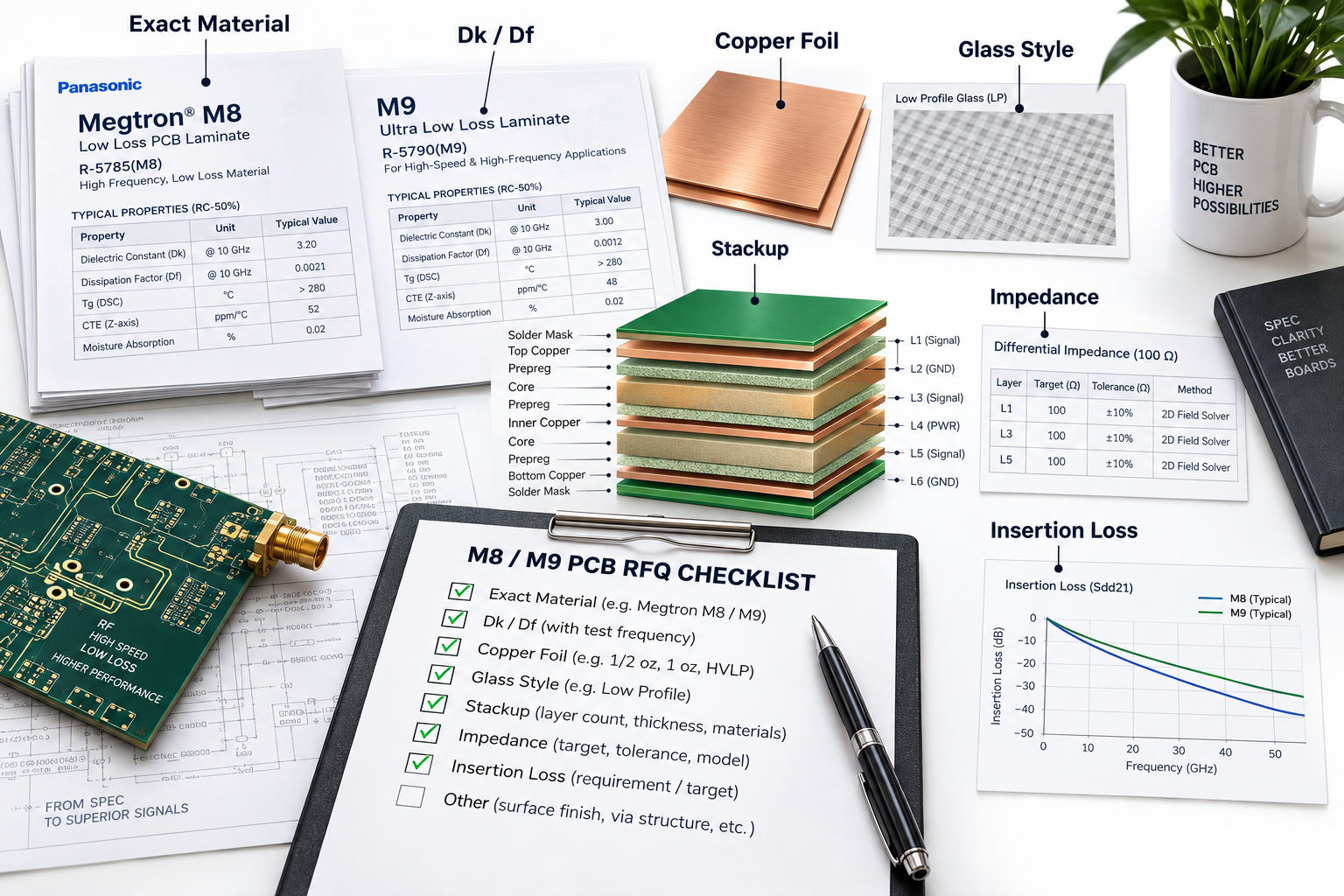
    5. Clean the iron tip with a cleaning sponge to remove any dirt or old solder. Then apply a small amount of fresh solder to the tip to improve heat transfer.
    6. Take the flux and apply a small amount to the solder joint you want to desolder. Flux helps lower the melting temperature of the solder and makes it flow more easily.
    7. Hold the soldering iron tip against the solder joint and heat it evenly. Do not heat the joint for more than 4 seconds at a time to prevent damaging the PCB pad.
    8. Once the solder fully melts and becomes liquid, quickly use the desoldering pump to suck up all the molten solder. Press the pump’s plunger before heating, then release it immediately after the solder melts.
    9. If there is still some residual solder left on the pad or via, use solder wick to clean it. Place the solder wick on the residual solder and heat it with the soldering iron until the wick absorbs the excess solder.
    10. For multi-pin components, repeat steps 26 to 29 for each pin. Make sure all solder is removed from every pin before attempting to lift the component.
    11. After all solder is removed, use anti-static tweezers to grip the component firmly. Lift it straight up slowly to avoid damaging the PCB pads or traces.
    12. Dip a lint-free swab in 90%+ isopropyl alcohol and wipe the area where you desoldered the component. This cleans up leftover flux residue.
    13. Inspect the PCB pad carefully to check for any damage. Look for lifted pads, broken traces or residual solder that needs to be cleaned.

    How to Desolder Pins and Through-Hole Components?

    For beginners desoldering pins and through-hole components, always remove all solder from each pin before taking the component off the PCB. Pulling the component with leftover solder will easily damage PCB pads or break component pins. Removing all solder first keeps pads intact and makes component removal simple.

    1. Take flux and put a little on each pin joint of the component. Flux helps solder melt faster and flow better, so you don’t have to heat the joint as long. This keeps the PCB from getting damaged. You can also dip the tip of the desoldering pump in flux first, it will pick up more solder that way.
    2. Set your soldering iron to the right temperature for your solder (320–360°C for leaded, 340–380°C for lead-free). Hold the iron tip on one pin until the solder on the joint melts completely.
    3. Before heating the pin, press down the plunger on the desoldering pump to get it ready. As soon as the solder turns liquid, let go of the plunger to suck up all the melted solder.
    4. After using the pump, check the pin and the pad around it. If there’s any solder left on the pad or in the small hole (via), use solder wick to clean it. Put the wick on the leftover solder, then hold the iron tip on the wick until it soaks up the extra solder.
    5. Move to the next pin and do the same thing. If needed, add a little more flux, heat the pin until the solder melts, suck it up with the pump, and clean any residue with solder wick. Keep doing this for every pin on the component.
    6. Once all solder is removed from all pins, take anti-static tweezers and hold the component firmly but gently. Lift it straight up slowly. If it feels stuck, you can wiggle it just a little, but never pull hard or twist it. Pulling or twisting will tear the PCB pads.
    7. After taking the component off, if the small holes (vias) on the PCB are clogged with leftover solder, use a small drill bit or thin needle to clear them. Be very gentle so you don’t damage the hole or the pad around it.

    The following is a comparison table of desoldering methods:

    MethodBest ForSpeedPad SafetyEase for Beginners
    Desoldering PumpMost through-hole pins & connectorsFastGoodVery Easy
    Solder WickResidual solder, flat pad cleaningMediumExcellentVery Easy
    Dual-Iron HeatingLarge multi-pin partsFastModerateIntermediate

    How to Desolder a Chip from a Circuit Board Safely?

    For beginners desoldering pins and through-hole components, learning how to desolder properly is crucial: always remove all solder from each pin before taking the component off the PCB. Pulling the component with leftover solder will easily damage PCB pads or break component pins. Removing all solder first keeps pads intact and makes component removal simple.

    1. Mark the chip’s orientation with a small non-toxic marker first. Locate the small dot or notch on one corner of the chip; this is the pin 1 indicator. Draw a matching mark on the PCB next to this corner to ensure correct alignment when reinstalling the chip. Installing a chip backwards can damage both the chip and the PCB.
    2. Apply a generous amount of flux to all pin rows of the chip using a flux pen. Ensure each pin and its underlying pad are covered with a thin layer of flux. Flux lowers solder’s melting point, improves heat transfer, and prevents solder from sticking, making it easier to remove solder cleanly and protect the PCB.
    3. Use a 1.0mm or smaller fine-tip soldering iron set to 320–360°C for leaded solder or 340–380°C for lead-free solder. Start with one pin row: hold the iron tip on the first pin until the solder melts, then use a desoldering pump to suck up the molten solder. Use solder wick to remove any remaining solder on the pin or pad, and repeat this for every pin in the row.
    4. Repeat the process for the next pin rows, working slowly. For multi-pin chips like QFP or SOIC, speed up the process with drag soldering: apply extra flux to the row, heat the entire row by moving the iron back and forth, then use solder wick to absorb all molten solder at once. Continue until all pins are free of solder.
    5. If the chip is still stuck after removing visible solder, gently heat one corner’s pins for 2–3 seconds with the iron to melt hidden residual solder. Use anti-static tweezers to lift the chip slightly while heating. Never force it; if stuck, stop heating, add more flux, and try again. For stubborn chips, add a small amount of fresh solder to the corner pins to help melt old solder.
    6. After removing the chip, clean the PCB pads and chip pins (if reusing) with flux remover or 90%+ isopropyl alcohol. Use a lint-free swab to wipe each pad and pin individually to remove flux residue and leftover solder. This prepares the area for new chip installation and ensures good solder connections.

    For SOIC, QFP, or similar chips, hot air rework provides more even heating and reduces pad damage. Always keep heat moving to avoid burning the PCB or chip body.

    How to Desolder a Chip from a Circuit Board

    How to Desolder SMD Components With a Soldering Iron?

    You can easily desolder small SMD resistors, capacitors, and transistors using only a soldering iron, tweezers, and flux. The key is to heat one pad at a time, lift the component slightly, then free the other side.

    1. Set your iron to 300–330°C with a fine conical tip for precision.
    2. Add a small amount of flux to both SMD pads to reduce solder adhesion.
    3. Heat one end pad until solder melts, then use tweezers to lift that side of the component.
    4. Move the iron to the second pad, melt the remaining solder, and slide the part away completely.
    5. Clean both pads with solder wick to create a flat, smooth surface.
    6. Check for solder bridges and remove any excess with flux and wick.

    This method works perfectly for 2-pin SMD parts like resistors and capacitors. For 3–4 pin SMD transistors, alternate heating adjacent pins to release the part gradually.

    How to Desolder Circuit Board Components?

    Different types of circuit board components have unique desoldering requirements. Choosing the right technique for each component helps beginners work efficiently and avoid damaging the PCB or parts. Whether you’re working with through-hole parts, SMD components, or multi-pin devices, following component-specific steps ensures clean, safe desoldering.

    • Through-hole resistors and diodes: Use a desoldering pump to remove solder from one pin first. Gently bend the component lead slightly to separate it from the PCB pad. Then desolder the second pin completely and pull the component out. This method prevents stress on the PCB pads and component leads.
    • Through-hole capacitors: Heat and desolder both pins quickly, one after the other. Capacitors are sensitive to prolonged heat, so minimizing heat exposure protects the capacitor body from damage. Once both pins are free of solder, lift the capacitor straight up.
    • Large connectors and ports: Desolder each pin individually with a desoldering pump. Take your time to clear all solder from each pin before attempting to move the connector. Never twist or pull the connector until every pin is fully free, as this can tear PCB pads or break connector pins.
    • Small SMD components: Apply flux to both pads of the SMD part. Heat one pad with a fine-tip soldering iron until the solder melts, then use tweezers to lift that side of the component. Move the iron to the second pad, melt the remaining solder, and slide the component away. Clean both pads with solder wick afterward.
    • Integrated circuits and chips: Focus on removing solder from all pins evenly. Use a fine-tip iron and solder wick to clear each pin, or use drag soldering for multi-pin chips. Ensure no solder remains on any pin before lifting the chip with anti-static tweezers to avoid pad damage.
    How to Desolder Circuit Board Components

    How to Desolder an HDMI Port on a PCB?

    To desolder an HDMI port properly, you need to remove solder evenly from all through-hole pins and mounting tabs. Its closely spaced pins and delicate pads mean rushing or using too much force can damage the port or PCB. Follow these simple steps for safe, clean desoldering.

    1. Secure the PCB to a heat-resistant mat with double-sided tape or holders to keep it stable. Ensure the HDMI port is accessible, the board is flat, and you have good lighting to see pins clearly.
    2. Wear an anti-static wristband. Apply liquid flux to all HDMI pins and side mounting tabs with a flux pen to make solder removal easier and protect the PCB.
    3. Set your soldering iron to 320–360°C (leaded solder) or 340–380°C (lead-free). Use a 1.0mm fine tip, clean and tin it first. Heat each pin for 2–3 seconds until solder melts, then use a pre-primed desoldering pump to suck up the molten solder. Repeat for every pin.
    4. Apply extra flux to the side mounting tabs. Heat one tab for 2–3 seconds until solder melts, then gently lift it with anti-static tweezers to break the bond. Repeat for all tabs.
    5. Grip the HDMI port by its plastic housing with tweezers. Lift it straight up slowly—do not twist or pull hard. If stuck, check for leftover solder, reheat with flux, and try again.
    6. After removing the port, clean residual solder from pads with solder wick. Wipe pads with a lint-free swab dipped in 90%+ isopropyl alcohol and let it dry completely.
    7. For stubborn pins, add a little fresh solder to help melt old solder. Reheat for 2–3 seconds, suck it up with the pump, and repeat until the pin is free.

    After desoldering, check PCB pads for damage. If pads or traces are damaged, use a small jumper wire to restore connectivity before installing a new HDMI port.

    How to Desolder Small Components Without Damaging Pads?

    The most reliable way to desolder small components without pad damage is to use sufficient flux, controlled heat, and vertical lifting only. Lateral force, overheating, and prying are the main causes of lifted pads, which can break electrical connectivity and render the PCB unusable. For beginners, focusing on gentle, precise steps is key to avoiding this common issue.

    1. Use a fine soldering tip (≤1.2mm) for better precision, as small components have tiny pads that require targeted heating. Set your soldering iron to 300–330°C and limit heating to 2–3 seconds per pad. This prevents overheating the PCB substrate and lifting the delicate pads.
    2. Always apply flux before heating the solder joint. Use a flux pen for precise application, adding a thin layer to both the component pin and the PCB pad. Flux helps reduce solder adhesion, lowers the melting temperature, and minimizes the heat needed, which protects both the pad and the component.
    3. Use solder wick to remove excess solder instead of prying components off pads. Place the solder wick over the residual solder, heat it gently with the soldering iron, and let the wick absorb the excess. Prying can easily tear pads, so this method is much safer for small, delicate components.
    4. Lift components straight up with anti-static tweezers. You should avoid side-to-side pulling, as this creates lateral force that can separate the pad from the PCB. Grip the component firmly but gently, and lift slowly once all solder has been removed.
    5. For leftover solder on the pad, reheat the area lightly with the soldering iron and use solder wick to absorb it. This helps flatten the pad surface, ensuring it is smooth and ready for any future component installation. Be careful not to overheat the pad during this step.
    6. Let the PCB cool completely before inspecting the pads under magnification. Use a magnifying glass or magnifying lamp to check for any hidden damage, such as tiny lifted pads or residual solder that needs cleaning. Cooling the board prevents heat-related damage during inspection.

    A lifted pad can break electrical connectivity, making the PCB non-functional. For this reason, patience and a gentle technique are more important than speed when desoldering small components. Taking your time to follow each step reduces the risk of permanent damage.

    How to Desolder Small Components

    What Are the Essential Tools for Desoldering PCB Components?

    Having the right tools makes desoldering faster, safer, and more consistent for beginners. Below is a complete, practical toolkit for reliable PCB rework.

    Tool CategoryRecommended ToolsPurpose & Benefit
    Main HeatingTemperature-controlled soldering stationStable heat prevents overheating and pad burn
    Solder RemovalDesoldering pump, solder wick (copper braid)Fast, clean solder removal for all joint types
    Handling & PrecisionAnti-static tweezers, flux pen, magnifierAccurate placement and visibility for small parts
    Safety & CleaningAnti-static wristband, 90%+ isopropyl alcoholProtects sensitive electronics and cleans residue

    What Are Common Mistakes to Avoid When Desoldering PCBs?

    Avoiding these common mistakes will drastically improve your success rate, reduce board damage, and make desoldering feel much easier for beginners.

    • Overheating joints: Prolonged heating burns the PCB substrate, lifts pads, and damages components. Limit heating to 2–4 seconds per joint.
    • Skipping flux: Without flux, solder sticks tightly and requires more heat, greatly increasing damage risk.
    • Using excessive force: Prying, pulling, or twisting components before solder is removed is the top cause of broken pads and traces.
    • Using a dirty or worn iron tip: A dirty tip reduces heat transfer, leading to incomplete solder removal and cold joints.
    • Ignoring ESD protection: Static electricity can damage sensitive chips even if desoldering is done correctly.
    • Rushing multi-pin parts: Removing components before all solder is cleared almost always results in pad or trace damage.

    Fixing these habits immediately will turn frustrating attempts into clean, consistent results.

    FAQ About PCB Desoldering for Beginners

    Q1: What temperature is best for desoldering PCBs as a beginner?
    A1: 320–360°C works best for leaded solder. For lead-free solder, use 340–380°C. Stable, moderate heat protects pads while melting solder fully.

    Q2: Can I desolder parts without a desoldering pump or solder wick?
    A2: Yes, but it is only recommended for emergencies. Melt the solder and gently tap the board to shake off excess solder. Results are less clean and carry higher pad risk.

    Q3: How do I fix a lifted pad after desoldering?
    A3: Clean the area, attach a small jumper wire between the trace end and component pad, then secure with a small amount of solder to restore connectivity.

    Q4: Why won’t my desoldering pump remove solder properly?
    A4: Most issues come from insufficient flux, a dirty iron tip, or low temperature. Add flux, clean the tip, and slightly increase heat before trying again.
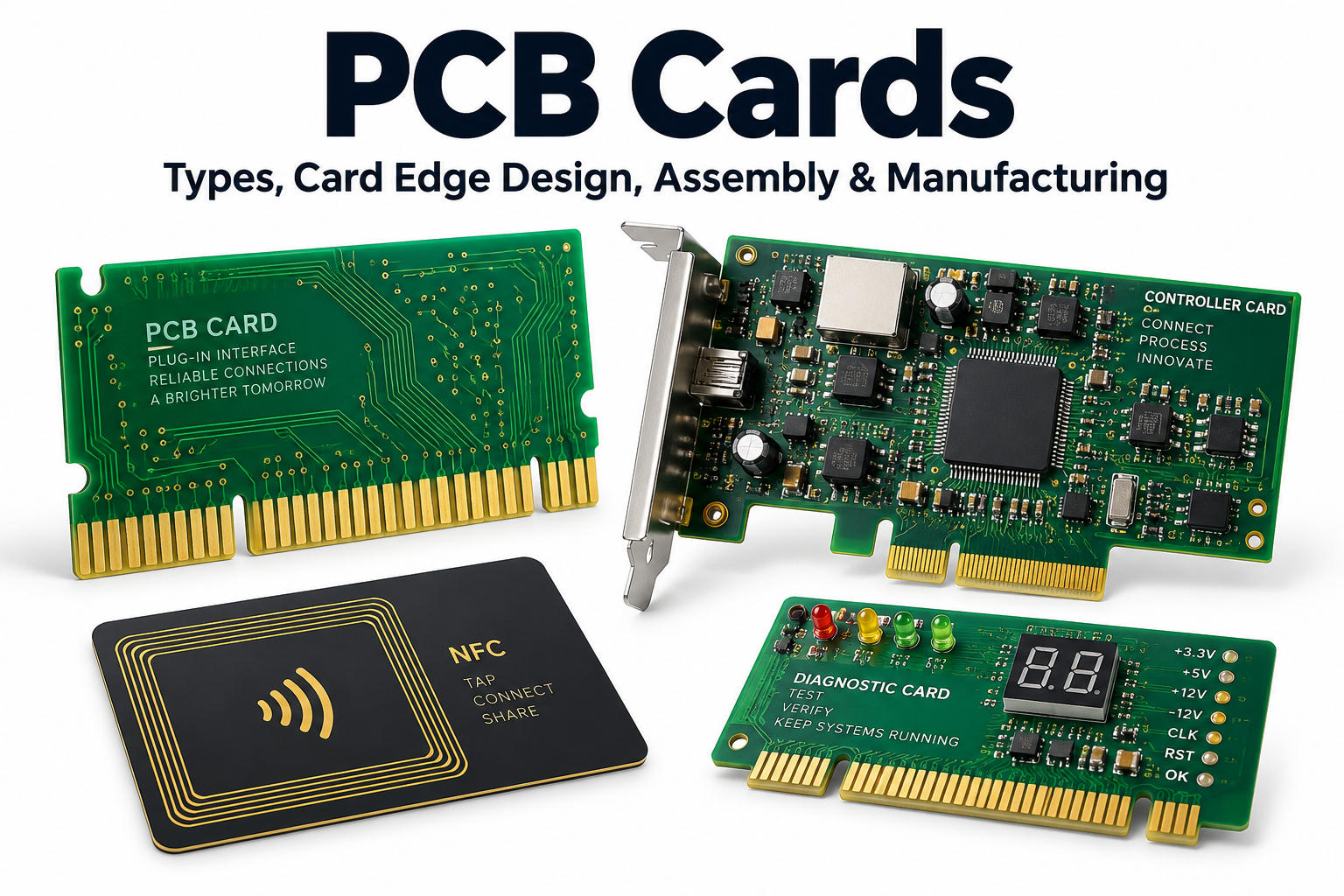
    Q5: Is SMD desoldering harder than through-hole for new learners?
    A5: SMD requires more precision but is easy to learn with practice. Start with larger 0805 or 1206 size parts before moving to tiny 0603 components.
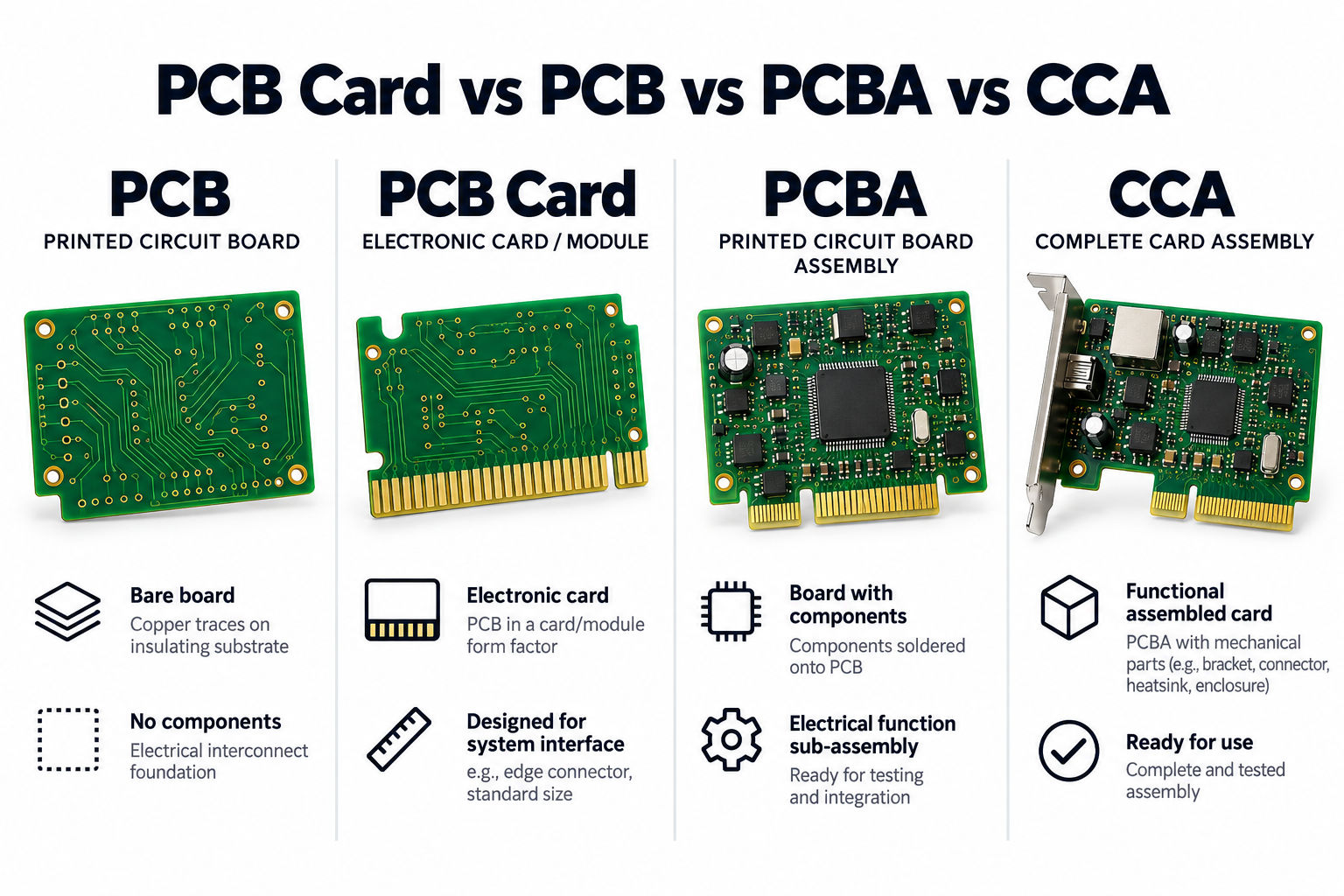
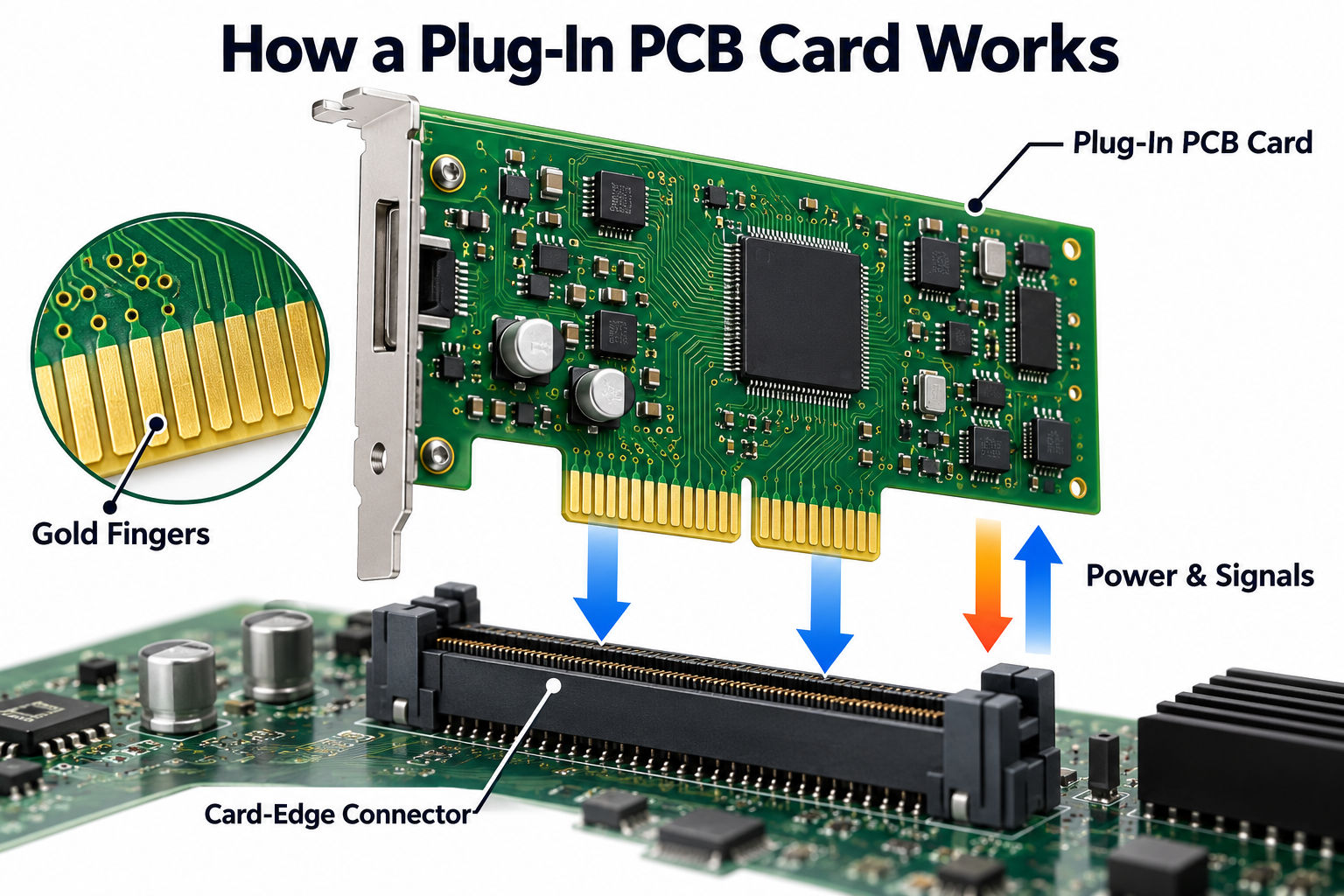
    Q6: How do I clean flux residue after desoldering?
    A6: Wipe the area with a lint-free swab dipped in 90%+ isopropyl alcohol. Let it dry completely before powering the board.

    Q7: Can desoldered components be reused safely?
    A7: Most through-hole components can be reused if not overheated. SMD parts are reusable only if pins remain straight and undamaged.

    Q8: How do I fix solder bridges between pins after desoldering?
    A8: Apply flux to the bridge, place solder wick over it, and heat with the iron. The wick will absorb excess solder and separate the pins cleanly.